
Stay Up-to-Date: A Beginner’s Guide to Managing System Updates
Managing system updates is a fundamental aspect of maintaining digital devices. This guide provides an overview for users new to the process, covering why updates are important, how to perform them, and potential pitfalls to avoid.
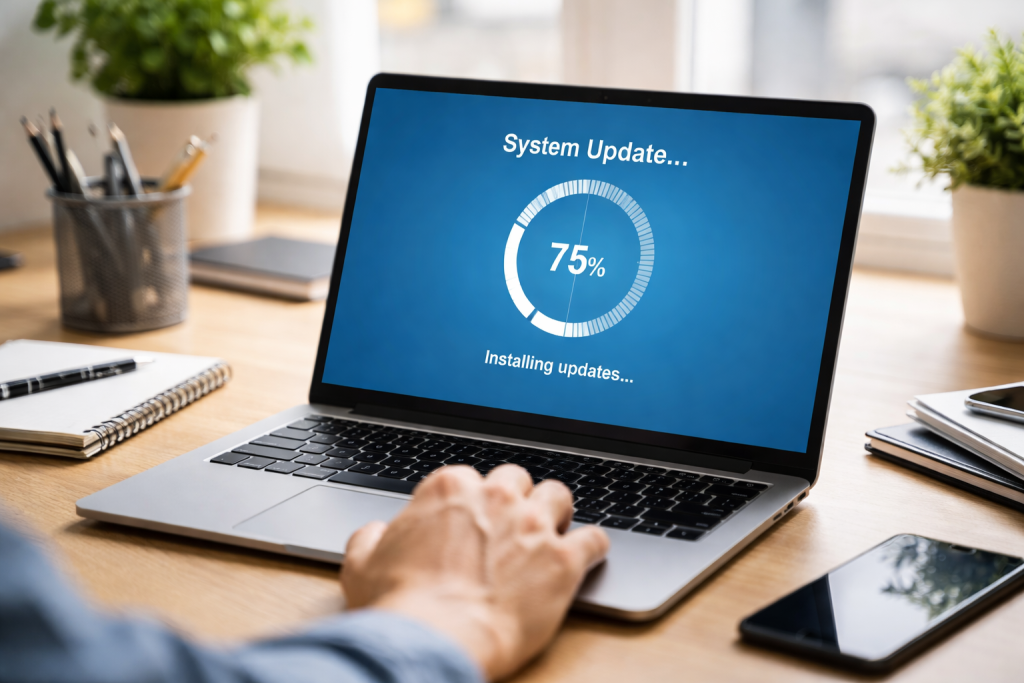
System updates are not merely background noise or optional enhancements. They are critical maintenance tasks for your software and operating systems. Think of your computer or smartphone as a house. Over time, builders release new blueprints, making structural improvements, fixing known flaws, and adding new amenities. System updates function similarly, delivering crucial changes that impact performance, security, and functionality.
Contents
- 0.1 Security Patches: Closing the Doors
- 0.2 Performance Enhancements: A Smoother Ride
- 0.3 New Features and Functionality: Modernizing Your Tools
- 0.4 Bug Fixes: Squashing the Annoyances
- 0.5 Operating System Updates: The Foundation
- 0.6 Application Updates: The Building Blocks
- 0.7 Increased Vulnerability to Cyberattacks: The Open Doorway
- 0.8 Malware and ransomware infections act as digital burglars.
- 0.9 Software Instability and Performance Degradation: The Slowing Engine
- 0.10 Incompatibility Issues: The Outdated Map
- 0.11 Loss of Access to Support: The Unanswered Phone Call
- 0.12 Desktop and Laptop Computers: The Workhorses
- 0.13 Smartphones and Tablets: The Pocket Companions
- 0.14 Gaming Consoles and Smart Home Devices: The Entertainment and Convenience Hubs
- 0.15 Maintaining a Backup Strategy: The Safety Net
- 0.16 Enable Automatic Updates When Possible: This is a Set-and-Forget approach.
- 0.17 Schedule Regular Manual Checks: The Proactive Scan
- 0.18 Understand What’s Being Updated: The Informed User
- 0.19 Read Release Notes for Significant Updates: The Detailed Blueprint
- 0.20 Keep Device Drivers Updated: The Underlying Plumbing
- 0.21 Prioritize Security Updates: The Emergency Response
- 0.22 Update Failures: The Stalled Journey
- 0.23 Slow Performance After Updates: The Temporary Hiccup
- 0.24 Application Incompatibility: The Misfit Puzzle Piece
- 0.25 Excessive Restart Prompts: The Demanding Assistant
- 0.26 Unexpected Behavior or Bugs: The Unforeseen Glitch
- 0.27 Closing Exploitable Holes: The Active Defense
- 0.28 Preventing Zero-Day Exploits from Becoming Widespread: The Rapid Response
- 0.29 Ensuring Compatibility with Security Tools: The Interlocking Gears
- 0.30 Maintaining Compliance with Security Standards: The Regulatory Framework
- 1 FAQs
Security Patches: Closing the Doors
One of the primary reasons for system updates is security. Software, like any complex system, can have vulnerabilities or “bugs” that malicious actors can exploit. These vulnerabilities are like unlocked doors in your digital house, allowing unauthorized access and potential damage. Security patches are released to close these doors, preventing hackers from gaining entry and stealing your data or compromising your device. Without these patches, your system remains an accessible target.
Performance Enhancements: A Smoother Ride
Beyond security, updates often include optimizations that can make your devices run faster and more efficiently. Developers identify bottlenecks or inefficiencies in their code and release updates to address them. These features can translate to quicker application loading times, smoother multitasking, and overall a more responsive user experience. It’s akin to upgrading the engine in your car to improve its fuel efficiency and acceleration.
New Features and Functionality: Modernizing Your Tools
Updates can also introduce new features or improve existing ones. This allows users to benefit from the latest advancements and innovations. For instance, a smartphone operating system update might bring a redesigned user interface, enhanced camera capabilities, or new productivity tools. This feature keeps your devices current and competitive, preventing them from becoming obsolete technological anchors.
Bug Fixes: Squashing the Annoyances
Every piece of software has bugs, small errors in the code that can cause unexpected behavior, crashes, or incorrect results. Developers constantly monitor user feedback and internal testing to identify and fix these bugs. Updates deliver these fixes, resolving frustrating issues and improving the overall stability of your system. It’s like having a handyman come to fix leaky faucets or squeaky doors; these small fixes contribute to a more pleasant living experience.
The process for checking and installing system updates varies slightly depending on the device and operating system, but the general principles remain consistent. Familiarizing yourself with these steps will empower you to take control of your system’s health.
Operating System Updates: The Foundation
Your operating system (OS) is the bedrock upon which all other software runs. Most modern operating systems, such as Windows, macOS, Android, and iOS, have built-in mechanisms for checking and installing updates.
On Desktop and Laptop Computers
For Windows users, updates are typically managed through Windows Update, accessible via the Settings app. macOS users can find software updates in System Preferences. These systems often notify you when updates are available, prompting you to download and install them. It’s generally recommended to allow these updates to install to ensure your system is protected and performing optimally.
On Mobile Devices
Mobile operating systems, Android and iOS, also have dedicated update sections within their Settings menus. You can usually find these under “About Phone” or “Software Update” on Android devices and “General” > “Software Update” on iPhones and iPads. These platforms often provide automatic update options, which can be convenient, but it’s still wise to periodically check manually.
Application Updates: The Building Blocks
Beyond the OS, individual applications also require updates. These updates can fix bugs specific to that application, introduce new features, or improve compatibility with the latest OS versions.
App Stores: The Central Hub
Most applications are downloaded and managed through app stores like the Apple App Store or Google Play Store. These stores typically provide a section to view available updates for your installed applications. You can often choose to update applications individually or enable automatic updates for all apps. Regularly checking and applying these updates is critical to preserving the functionality and security of your favorite software.
Manual Updates for Some Software
App stores may not manage certain software, especially on desktop computers. These applications might have their built-in update checkers or require you to visit the developer’s website to download the latest version. When in doubt, consult the application’s help documentation or the developer’s support resources.
Choosing to ignore system updates is akin to leaving your digital doors wide open and hoping for the best. While it might seem like an inconvenience to stop what you’re doing and install an update, the potential consequences of neglecting them can be far more disruptive and damaging.
Increased Vulnerability to Cyberattacks: The Open Doorway
The most significant risk of ignoring system updates is leaving your devices susceptible to security threats. As mentioned earlier, software vulnerabilities are discovered regularly. If you don’t install the patches that fix these vulnerabilities, you are essentially providing a clear path for hackers to exploit your system. These issues can lead to stolen personal information, financial fraud, or even the complete hijacking of your device. Imagine leaving your car unlocked with the keys in the ignition—it’s an invitation for trouble.
Malware and ransomware infections act as digital burglars.
Unpatched systems are prime targets for malware, including viruses, spyware, and ransomware. Malware can slow down your device, steal your data, or even lock your files and demand payment for their release (ransomware). The longer you delay updates, the more time malicious actors have to develop and deploy new threats that target known, unpatched vulnerabilities.
Software Instability and Performance Degradation: The Slowing Engine
As operating systems and applications evolve, they often require specific versions of underlying software components to function correctly. If you don’t update, you might encounter software that begins to misbehave, crash frequently, or simply run much slower. Such issues can be due to incompatibility with newer system elements or simply the accumulation of unaddressed bugs that degrade performance over time.
Incompatibility Issues: The Outdated Map
New software releases or hardware devices may require newer versions of your operating system or drivers to function properly. If you do not update, you might be unable to use new applications or connect new peripherals. Your system becomes like a map that doesn’t show the latest road changes—you’ll get lost trying to navigate the modern digital landscape.
Loss of Access to Support: The Unanswered Phone Call
When you encounter problems with your software or operating system, one of the first things support technicians will ask is if your system is up-to-date. Developers often stop providing support for older, unsupported versions of their software to focus resources on current releases. If you’re running an outdated system, you may find yourself without reliable help when you need it most.
Managing updates across various devices requires a consistent approach. While the specifics differ, the core principles of regularity and awareness apply universally.
Desktop and Laptop Computers: The Workhorses
On desktops and laptops, you have more direct control. Scheduling a regular time, perhaps weekly, to check for and install updates is a good practice. For Windows, ensure automatic updates are enabled, but consider setting active hours to avoid disruptive restarts. For macOS, regular checks through System Preferences are recommended. If you have critical software that doesn’t auto-update, create a calendar reminder to check its developer website periodically.
Smartphones and Tablets: The Pocket Companions
Mobile devices are often the most streamlined in their update management. Enable automatic updates for both OS and app store applications, as this is the easiest way to keep them secure and current. However, it’s still wise to periodically visit the OS update section in settings to ensure the device is receiving all available updates. Be mindful of using Wi-Fi for larger OS updates to avoid exceeding mobile data allowances.
Gaming Consoles and Smart Home Devices: The Entertainment and Convenience Hubs
Gaming consoles like PlayStation and Xbox, as well as smart home devices like smart TVs and voice assistants, also receive regular updates. When the device connects to the internet and powers on, these updates often happen automatically. Ensure these devices are regularly powered on (not just in standby) to allow updates to download and install. Check their respective settings menus if you suspect updates are being missed.
Maintaining a Backup Strategy: The Safety Net
Before embarking on significant system updates, particularly for operating systems, consider creating a backup of your important data. This serves as a safety net. If an update causes unforeseen problems, you can restore your system to its previous state. Cloud backup services or external hard drives are common methods for this.
Establishing positive habits around system updates will proactively safeguard your digital environment. These practices transform a potentially daunting task into a regular, manageable routine.
Enable Automatic Updates When Possible: This is a Set-and-Forget approach.
For operating systems and applications where it’s available, enabling automatic updates is the most efficient method. This ensures that security patches and critical fixes are applied without requiring manual intervention. However, be aware of when these updates might occur and configure them to avoid disruptions to your workflow, especially on computers.
Schedule Regular Manual Checks: The Proactive Scan
Even with automatic updates enabled, it’s beneficial to schedule a regular time, perhaps once a week or month, to manually check for updates across all your devices. This is particularly important for applications that don’t have automatic update features or for situations where automatic updates might have failed. It’s like periodically checking the locks on your doors, even if you have an alarm system.
Understand What’s Being Updated: The Informed User
When an update is presented, take a moment to understand what it entails. Operating systems and app stores often provide brief descriptions of the changes, such as bug fixes, security enhancements, or new features. This knowledge can help you anticipate any changes in how your devices function and ensure you’re aware of the benefits you’re receiving.
Read Release Notes for Significant Updates: The Detailed Blueprint
For major operating system upgrades or significant application updates, take the time to read the release notes or accompanying documentation. These provide more in-depth information about the changes, potential new requirements, and any known issues. This foresight can help you prepare for the update and avoid surprises.
Keep Device Drivers Updated: The Underlying Plumbing
Device drivers are essential software components that allow your operating system to communicate with your hardware (e.g., graphics card, printer). While OS updates often include driver updates, sometimes it’s necessary to manually update them from the manufacturer’s website. Outdated drivers can lead to performance problems or hardware malfunctions.
Prioritize Security Updates: The Emergency Response
Security updates should always be treated with the highest priority. If a critical security vulnerability is announced, install the relevant patch as soon as possible. These updates are often designed to close immediate threats and protect you from ongoing attacks.
Despite best efforts, system updates can sometimes encounter snags. Understanding common problems and their solutions can help you navigate these situations with less frustration.
Update Failures: The Stalled Journey
Occasionally, an update may fail to install. This can be due to insufficient disk space, corrupted download files, or conflicts with other software. Restarting your device and attempting the update again is often the first step. Ensure you have adequate free space on your storage drives. If the problem persists, consult the support resources for your operating system or the specific application.
Slow Performance After Updates: The Temporary Hiccup
Sometimes, a device might experience a temporary slowdown in performance immediately after an update. This can occur as the system indexes new files, optimizes settings, or runs background processes. In most cases, this problem is temporary, and the performance will return to normal after a while. Restarting the device can sometimes help resolve this. If the slowdown is persistent, it might indicate a compatibility issue, and seeking support is advisable.
Application Incompatibility: The Misfit Puzzle Piece
An OS update can sometimes cause certain applications to become incompatible. Older applications or those without updates from their developers frequently experience this. If a critical application stops working after an update, check if there is an updated version available from the developer. If not, you may need to consider alternative software or wait for the developer to release a compatible version.
Excessive Restart Prompts: The Demanding Assistant
Repetitive prompts to restart your computer for updates can cause disruption. On Windows, you can configure “active hours” in Windows Update settings to prevent restarts during specific times. For other systems, manually installing pending updates when it’s convenient can help clear these prompts.
Unexpected Behavior or Bugs: The Unforeseen Glitch
While updates aim to fix bugs, they can sometimes introduce new ones. If you notice unexpected behavior or errors after an update, try to isolate the issue. Does it occur only in a specific application? Does it happen after a particular action? It is crucial to report these bugs to the software vendor so that future updates can address them.
System updates are not just about convenience or performance; they are a cornerstone of robust cybersecurity. Their role is to provide ongoing protection against an ever-evolving threat landscape.
Closing Exploitable Holes: The Active Defense
Cybersecurity is an ongoing battle. Security researchers and ethical hackers discover and catalog new exploits, which leads to the identification of vulnerabilities in existing software. System updates serve as the primary vehicle for deploying “patches” that seal these vulnerabilities. By not updating, you are allowing these exploitable holes to remain open, presenting an accessible target for malicious actors. It is the digital equivalent of reinforcing your home’s defenses when new threats emerge.
Preventing Zero-Day Exploits from Becoming Widespread: The Rapid Response
“Zero-day” exploits are vulnerabilities that are unknown to the software vendor and for which no patch yet exists. However, system updates swiftly release the discovered exploit and its developed patch. Promptly applying these updates minimizes the window of opportunity for widespread exploitation of newly discovered vulnerabilities.
Ensuring Compatibility with Security Tools: The Interlocking Gears
Modern security software, such as antivirus programs and firewalls, often relies on specific versions of operating systems and system libraries to function correctly. Regularly updating your OS ensures that your security tools can operate effectively and are compatible with the underlying system. Outdated systems can impair the functionality of your security defenses.
Maintaining Compliance with Security Standards: The Regulatory Framework
Many organizations and industries have specific cybersecurity regulations and compliance requirements that mandate keeping systems up-to-date. Failing to do so can result in penalties, loss of certifications, and reputational damage. For individuals, maintaining updated systems contributes to a generally more secure digital footprint, which is increasingly important in an interconnected world.
In conclusion, managing system updates is not an optional technicality but a vital component of responsible digital citizenship. By understanding their importance, knowing how to perform them, and adopting best practices, you can significantly enhance the security, performance, and longevity of your digital devices.
FAQs
1. Why are system updates important?
System updates are important because they contain patches for security vulnerabilities, bug fixes, and performance improvements. Ignoring system updates can leave your device vulnerable to cyberattacks and malware.
2. How do I check for and install system updates?
On Windows, you can check for updates by going to Settings > Update & Security > Windows Update. Navigate to System Preferences > Software Update from the Apple menu on a Mac. On mobile devices, go to Settings > System > Software Update.
3. What are the risks of ignoring system updates?
Ignoring system updates can leave your device vulnerable to security breaches, malware, and other cyber threats. It can also lead to performance issues and compatibility problems with new software.
4. What are some tips for managing system updates on different devices?
Some tips for managing system updates on different devices include enabling automatic updates, scheduling updates during off-peak hours, and regularly checking for updates manually. It’s also important to back up your data before installing updates.
5. What are the best practices for keeping your system up-to-date?
The best practices for keeping your system up-to-date include regularly checking for updates, enabling automatic updates when possible, backing up your data, and staying informed about the latest security threats and updates. It’s also important to use reputable sources for updates and to avoid clicking on suspicious links or pop-ups.

Smart Tech Manual is a technology-focused platform dedicated to providing simple, clear, and beginner-friendly guides for everyday users.