
Simplify Your Setup: How to Connect External Devices Like a Pro
Understanding how to integrate external devices efficiently is crucial for anyone building or maintaining a computing setup. This guide offers practical advice on connecting peripherals, optimizing their use, and preparing for future technological advancements.
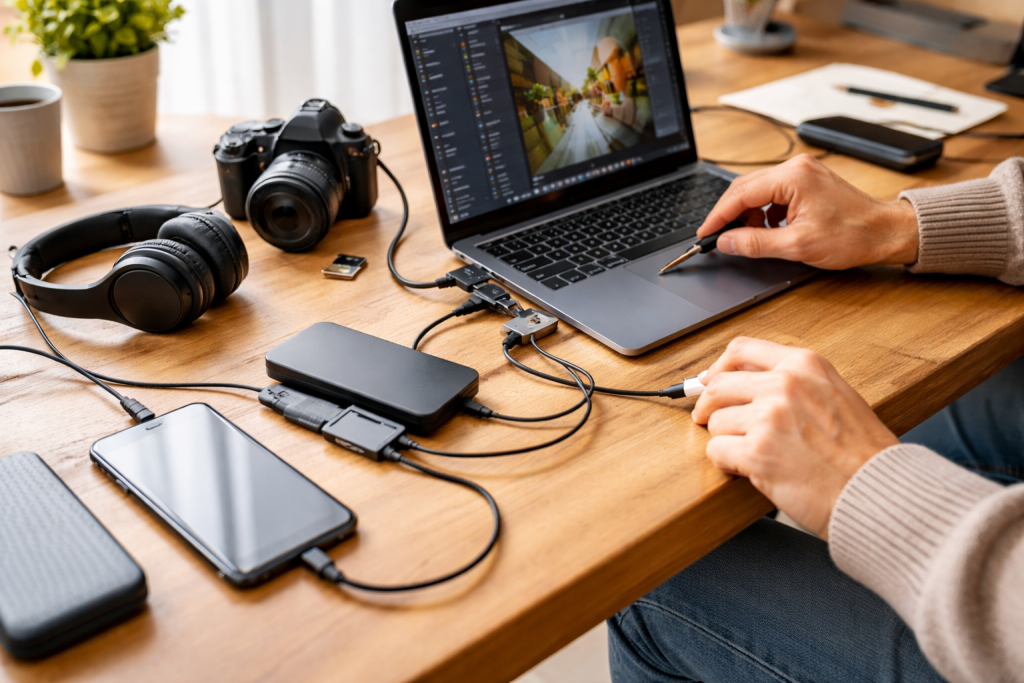
Connecting external devices, such as monitors, keyboards, mice, storage drives, and audio equipment, forms the foundation of any functional computer system. Each device serves a specific purpose, expanding the computer’s capabilities.
Contents
- 0.1 Port Types and Their Functions
- 0.2 Device Drivers and Software
- 0.3 Power Considerations
- 0.4 Cable Types and Standards
- 0.5 Adapters and Dongles
- 0.6 Cable Management
- 0.7 Ergonomics and Device Placement
- 0.8 Power Outlet Availability
- 0.9 Network Connectivity
- 0.10 Step-by-Step Diagnosis
- 0.11 Driver and Software Conflicts
- 0.12 Cable and Port Integrity
- 0.13 Leveraging Device Features
- 0.14 Regular Maintenance
- 0.15 Planning for Upgrades and New Technologies
- 0.16 Adaptability and Modular Design
- 1 FAQs
- 1.1 1. What are the basic steps for connecting external devices to my setup?
- 1.2 2. How do I choose the right cables and adapters for seamless connectivity?
- 1.3 3. What are some tips for troubleshooting common connectivity issues with external devices?
- 1.4 4. How can I streamline my workflow with external devices for enhanced productivity?
- 1.5 5. What steps can I take to future-proof my setup for new external devices and technologies?
Port Types and Their Functions
Understanding the various port types on your computer and devices is the first step. Common ports include USB (Universal Serial Bus) in its various iterations (Type-A, Type-C, Micro-USB, Mini-USB), HDMI (High-Definition Multimedia Interface), DisplayPort, Ethernet (RJ45), 3.5 mm audio jacks, and Thunderbolt.
USB ports are widely used for data transfer, charging, and connecting a broad range of peripherals from keyboards to external hard drives. HDMI and DisplayPort are primarily for video and audio output to displays. Ethernet provides wired network connectivity. Audio jacks handle sound input and output. Thunderbolt combines data, video, and power delivery into a single port, often utilizing the USB-C physical connector. Each port is a designated gate, allowing specific types of information or power to flow in and out.
Device Drivers and Software
Most operating systems include built-in drivers for common devices. However, some peripherals, especially those with advanced features or older models, may require specific software or drivers to function correctly. These drivers act as translators, enabling the operating system to communicate effectively with the device. Always check the manufacturer’s website for the latest drivers. Updating drivers can resolve compatibility issues and improve performance.
Power Considerations
Many external devices draw power directly from the computer via their connection cable. However, some devices, such as external hard drives, high-powered USB hubs, or larger monitors, require an independent power source. Ensure that your power supply or USB port can provide sufficient power to avoid connectivity issues or unstable operation. An underpowered device might function erratically or not at all, akin to trying to power a large machine with a small battery.
The right cable is as important as the device itself. Using incorrect or low-quality cables can lead to poor performance, signal degradation, or outright failure to connect.
Cable Types and Standards
Cables are not interchangeable solely based on their physical connectors. For instance, a USB-C cable can support various standards like USB 2.0, USB 3.0, USB 3.1, USB 3.2, or Thunderbolt. Each standard dictates data transfer speeds and power delivery capabilities. Similarly, HDMI cables come in various versions (e.g., 1.4, 2.0, 2.1) affecting resolution, refresh rate, and bandwidth. Always match the cable standard to the capabilities of your devices and desired performance. Think of cables as pipelines; a wider pipeline can carry more data faster.
Adapters and Dongles
Adapters bridge the gap between different port types. For example, a USB-C to HDMI adapter allows you to connect a USB-C-only laptop to an HDMI monitor. While useful, excessive use of adapters can introduce points of failure and potentially degrade signal quality. Prioritize direct connections when possible. When adapters are necessary, invest in reputable brands to ensure reliability.
Cable Management
Effective cable management is not just about aesthetics; it also helps prevent damage to cables and ports, reduces clutter, and improves airflow. Use cable ties, sleeves, or routing channels to organize cords. This organized approach minimizes the “spaghetti monster” effect under your desk and makes troubleshooting easier.
An organized and well-planned workspace contributes significantly to the efficient use of external devices.
Ergonomics and Device Placement
Positioning your devices ergonomically can prevent strain and improve productivity. Place monitors at eye level, ensuring proper distance. The keyboard and mouse should be within easy reach, allowing for natural hand and wrist positions. External storage devices should be accessible but not obstruct your movement. Consider the pathways for wires and human traffic around your workstation.
Power Outlet Availability
Ensure you have enough power outlets to accommodate all your powered devices. Power strips with surge protection are valuable for expanding outlets and safeguarding your equipment from voltage spikes. Distribute devices across different outlets or circuits if possible to avoid overloading a single circuit.
Network Connectivity
For network-dependent devices, ensure reliable internet access. Wired Ethernet connections generally offer greater speed and stability than Wi-Fi, especially for tasks requiring high bandwidth or low latency. If using Wi-Fi, position your router and devices to minimize interference and maximize signal strength.
Even with careful setup, connectivity issues can arise. A systematic approach to troubleshooting helps resolve problems quickly.
Step-by-Step Diagnosis
Start with the simplest checks. Is the device powered on? Is the cable securely connected at both ends? Have you tried a different port? Restarting your computer and the external device can often resolve temporary software glitches. These are the basic checks, like confirming the light switch is on before assuming the bulb is broken.
Driver and Software Conflicts
Outdated or corrupted drivers are a common cause of device malfunctions. Check the device manager (Windows) or system information (macOS) for driver status and update it if necessary. Sometimes, conflicting software can interfere with device operation. Consider uninstalling recently installed applications if problems began after their installation.
Cable and Port Integrity
Inspect cables for any visible damage, such as fraying or bent pins. Try swapping out cables or using a different port on your computer and device to identify if the issue lies with the cable or a specific port. A faulty cable can be a silent saboteur, preventing data flow without obvious signs.
To maximize your external devices, connect them properly, use their features, and prepare for future changes.
Leveraging Device Features
Many external devices come with advanced features that can enhance productivity or user experience. For example, gaming mice often have programmable buttons, high-resolution monitors offer split-screen functionality, and external hard drives support RAID configurations for data redundancy or performance. Explore the user manuals and software provided by manufacturers to unlock these capabilities.
Regular Maintenance
Keep your devices and software up to date. Firmware updates for devices can improve performance, add features, or fix bugs. Regularly clean physical ports and connectors to prevent dust and debris from causing connection issues. Consider your devices as tools; they require care to perform optimally.
Planning for Upgrades and New Technologies
Technology evolves rapidly. When investing in new devices, consider their longevity and compatibility with future standards. For example, choosing monitors with DisplayPort and HDMI 2.1 offers more flexibility than older standards. Opting for USB-C and Thunderbolt-enabled devices provides versatility due to their high bandwidth and multi-functionality.
Adaptability and Modular Design
When setting up your workspace, consider a modular approach that allows for simple addition or removal of devices. USB hubs, docking stations, and KVM switches (Keyboard, Video, Mouse) can simplify switching between multiple computers or expanding connectivity options without major reconfiguration. This approach treats your setup as a living entity, capable of growth and change. Anticipate potential needs, such as more storage, additional displays, or specialized input devices, and ensure your core setup can accommodate them. This foresight prevents the need for a complete overhaul each time a new piece of technology enters your workflow.
By understanding the fundamentals of connectivity, making informed choices about cables and hardware, maintaining an organized workspace, and adopting a proactive approach to troubleshooting and upgrades, you can build a robust and efficient computing environment.
FAQs
1. What are the basic steps for connecting external devices to my setup?
To connect external devices to your setup like a pro, start by understanding the basics of connectivity. This includes identifying the ports on your devices, choosing the right cables and adapters, and optimizing your workspace for efficient device integration.
2. How do I choose the right cables and adapters for seamless connectivity?
When choosing cables and adapters for seamless connectivity, consider the types of ports on your devices and the specific requirements of each. Look for high-quality cables and adapters that are compatible with your devices and provide reliable connectivity.
3. What are some tips for troubleshooting common connectivity issues with external devices?
To troubleshoot common connectivity issues like a pro, start by checking the physical connections, ensuring that the devices are powered on, and verifying that the correct drivers and software are installed. Additionally, consider testing the devices on another setup to isolate the issue.
4. How can I streamline my workflow with external devices for enhanced productivity?
To streamline your workflow with external devices, consider maximizing their potential by utilizing features such as multi-monitor setups, external storage for efficient file management, and input devices for improved control and precision. Additionally, explore software integrations that enhance device functionality.
5. What steps can I take to future-proof my setup for new external devices and technologies?
To future-proof your setup, stay informed about emerging technologies and connectivity standards. Consider investing in versatile devices with multiple connectivity options, such as USB-C, and exploring modular setups that allow for easy integration with new devices. Additionally, prioritize compatibility and scalability when choosing devices and accessories.

Smart Tech Manual is a technology-focused platform dedicated to providing simple, clear, and beginner-friendly guides for everyday users.