
Maximize Your Router’s Potential: A Comprehensive Guide to Firmware Updates
Maintaining a router requires understanding its core software, known as firmware. Just like the operating system on a computer, firmware controls a router’s functions. Regular updates to this software are crucial for optimal performance, security, and access to new features. This guide explains the importance of firmware updates, how to manage them, and the benefits they offer.
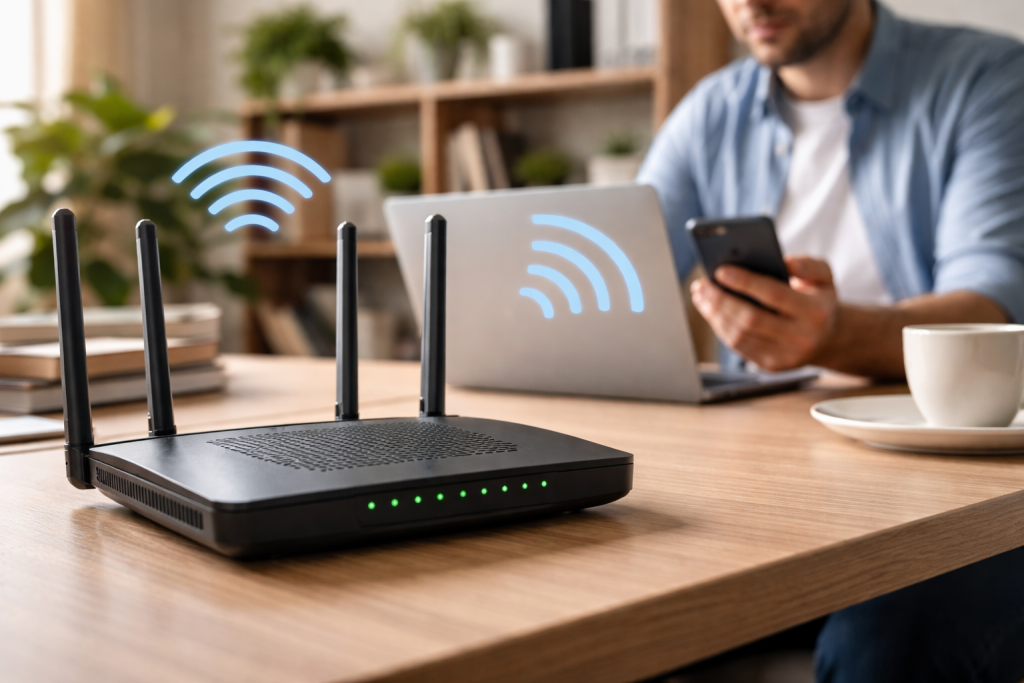
==The Importance of Firmware Updates==
The firmware of a router functions as its central nervous system. It dictates how the device handles network traffic, connects to other devices, and interacts with the internet. Over time, changes in technology or the discovery of vulnerabilities can cause the original firmware to become outdated. Firmware updates are small software packages released by the manufacturer to address these issues. Neglecting these updates can lead to a less efficient and less secure home network.
===Security Enhancements===
Cyber threats evolve constantly. New methods of attack, such as denial-of-service attacks or attempts to hijack routers for illicit activities, emerge regularly. Router manufacturers respond by releasing firmware updates that patch newly discovered security flaws. Think of your router’s security as a fortress. Firmware updates are like reinforcing the walls and patching any newly discovered weak points. Without these updates, your fortress remains vulnerable to new siege tactics. An unpatched vulnerability can allow attackers to gain unauthorized access to your network, potentially compromising connected devices and personal data.
=== Performance Improvement ===
Networking technology advancements can outpace the capabilities of older firmware. Updates often include optimizations that improve data transfer speeds, reduce latency, and enhance overall network stability. For example, a firmware update might refine the algorithms used for Wi-Fi signal allocation, leading to fewer dead zones or more consistent speeds across connected devices. This process is akin to a car receiving a software tune-up; the engine’s efficiency improves, leading to better fuel economy and smoother operation. You might experience faster downloads, smoother streaming, and more reliable connections after an update.
===New Features and Compatibility===
Router manufacturers periodically introduce new features or support for emerging technologies through firmware updates. These can range from enhanced parental controls to support for new Wi-Fi standards or smart home device integration. Without updating, your router may be unable to utilize these advancements. Occasionally, a firmware update is necessary to maintain compatibility with new internet service provider (ISP) standards or modern computing devices. This ensures your router remains relevant and functional within an evolving technological landscape.
==Checking for and Installing Firmware Updates==
The process of checking for and installing firmware updates is generally straightforward but requires careful attention to detail. Incorrectly flashing firmware can render a router unusable, a state known as “bricking.”
===Accessing Your Router’s Administration Interface===
The first step is to log into your router’s web-based administration interface. You typically do this by opening a web browser and entering your router’s IP address into the address bar. Common default IP addresses include 192.168.1.1, 192.168.0.1, or 192.168.1.254. Refer to your router’s manual or the label on the bottom of the device for the specific IP address and default login credentials (username and password). It is strongly recommended to change the default admin password if you have not already done so.
===Locating the Firmware Update Section===
Once logged in, navigate to the system or administration section. The exact path varies by manufacturer but often includes options like “Firmware Update,” “System Tools,” “Maintenance,” or “Administration.” Within this section, you should find details about your current firmware version and an option to check for new updates. Some routers offer an automatic check feature that can scan the manufacturer’s servers for new versions.
===Downloading and Installing the Update===
If an update is available, you will typically have two options:
- Automatic Update: Many modern routers can download and install firmware directly from the manufacturer’s server with a single click. This is the simplest method.
- Manual Update: If automatic update is not available or fails, you will need to download the firmware file (usually a .bin or .img file) from the router manufacturer’s support website. Ensure you download the correct firmware for your specific router model. Upload this file through the router’s administration interface.
During the update process, the router will restart. Do not power off or disconnect the router during this time. Interrupting the update can corrupt the firmware and damage the device. After the restart, log back into the administration interface to verify that the firmware has been updated to the new version.
==Addressing Common Issues with Firmware Updates==
Despite the benefits, firmware updates can sometimes lead to unexpected issues. Knowing how to troubleshoot these problems can save time and frustration.
===Connection Problems Post-Update ===
Occasionally, after a firmware update, clients may have difficulty connecting to the network or experience intermittent disconnections. This can often be resolved by a simple power cycle of the router: unplug it from the power source for 30 seconds, then plug it back in. Also, clear your device’s Wi-Fi network profiles and reconnect. If problems persist, a factory reset of the router may be necessary. The reset will revert all settings to their defaults, so you will need to reconfigure your network settings.
===Update Failure and Recovery===
In rare cases, a firmware update might fail or result in a router that no longer functions correctly. Most routers have a recovery mode or a failsafe mechanism that allows re-flashing firmware even if the main system is corrupted. This usually involves holding down a reset button during power-on or using a specialized utility provided by the manufacturer. If a router enters a “bricked” state and recovery options do not work, contacting the manufacturer’s support is the next step.
===Loss of Custom Settings===
Some firmware updates may reset all router configurations to their factory defaults. Before performing any update, particularly a major one, it is prudent to back up your router’s settings if the interface provides this option. This allows you to restore your personalized settings, such as Wi-Fi passwords, port forwarding rules, and DHCP reservations, without manually re-entering them.
==Risks of Neglecting Firmware Updates==
Ignoring firmware updates can leave your network exposed and underperforming. The risks are not merely theoretical; they are tangible threats to your network’s integrity and your data’s privacy.
===Increased Security Vulnerabilities===
An unpatched router is a magnet for malicious actors. Security vulnerabilities, once discovered and publicized, become targets for exploits. Neglecting updates leaves these “backdoors” open, allowing unauthorized access to your home network. Attackers can then eavesdrop on your internet traffic, redirect you to malicious websites, launch attacks from your network, or even implant malware on connected devices. Your router acts as a gatekeeper; without proper locks, the gate is open.
===Suboptimal Performance and Stability===
As network demands grow, older firmware can struggle to keep up. This can manifest as slower Wi-Fi speeds, frequent disconnections, buffering during streaming, or general network instability. Manufacturers refine their firmware to handle modern network loads more efficiently. Neglecting these refinements means your router is operating below its potential, much like a car running on an old, inefficient engine despite modern fuel.
===Compatibility Issues===
New devices and internet standards emerge continuously. Your smart television, new smartphone, or future smart home gadgets may rely on features or protocols that your aging router firmware does not support. Such situations can lead to devices failing to connect, connecting with reduced functionality, or encountering consistent errors. An outdated router can become a bottleneck, preventing your newer devices from performing as intended.
==Advanced Firmware Update Options==
For users with a deeper understanding of networking and a desire for more control, custom or third-party firmware offers an alternative path. These options can unlock hidden potential but also carry increased risk.
===Custom Firmware (e.g., DD-WRT, OpenWRT)===
Third-party firmwares like DD-WRT, OpenWRT, and Tomato are community-developed alternatives to official manufacturer firmware. They often provide a much wider range of features, advanced configuration options, and greater control over network parameters than standard firmware. Examples include more robust quality of service (QoS) settings, VPN client capabilities, advanced logging, and greater customization of Wi-Fi power output. This is akin to installing a custom operating system on a smartphone; it grants more flexibility but requires more technical knowledge.
====Advantages of Custom Firmware====
The primary advantage is the expanded feature set. These firmwares can prolong the life of older routers by adding capabilities that were never intended by the original manufacturer. They also often receive updates for security vulnerabilities faster than some official firmwares, especially for older router models that manufacturers no longer actively support. Furthermore, they can provide a more open and transparent software experience.
====Risks of Custom Firmware====
Flashing custom firmware carries inherent risks. Incorrect installation can permanently damage the router. Compatibility issues can arise, leading to instability or reduced performance. Unlike official firmware, custom options usually lack direct manufacturer support, meaning troubleshooting falls to the user or community forums. Furthermore, these third-party projects do not support all router models. It is crucial to research your specific router model’s compatibility and follow installation guides meticulously. Users should only attempt these tasks if they are comfortable with the technical aspects and understand the potential for irreversible damage.
Contents
- 1 FAQs
- 1.1 What is firmware, and why is it important to update it on your router?
- 1.2 How can I check for firmware updates on my router?
- 1.3 What are the benefits of keeping my router’s firmware up-to-date?
- 1.4 What common issues can firmware updates resolve?
- 1.5 What are the risks of neglecting firmware updates for my router?
FAQs
What is firmware, and why is it important to update it on your router?
Firmware is the software that is embedded into a hardware device, such as a router, to control its functionality. It is important to update the firmware on your router to ensure that it has the latest security patches, bug fixes, and performance improvements.
How can I check for firmware updates on my router?
To check for firmware updates on your router, you can typically log into the router’s web interface using a web browser and navigate to the firmware update section. From there, you can check for updates and follow the on-screen instructions to install them.
What are the benefits of keeping my router’s firmware up-to-date?
Keeping your router’s firmware up to date can provide several benefits, including improved security to protect against potential vulnerabilities, enhanced performance, and access to new features and functionality.
What common issues can firmware updates resolve?
Firmware updates can address common issues like connectivity problems, slow performance, and compatibility issues with specific devices. Additionally, they can tackle security flaws that hackers might exploit.
What are the risks of neglecting firmware updates for my router?
Neglecting firmware updates for your router can leave it vulnerable to security threats, performance issues, and compatibility problems with newer devices and technologies. It is important to regularly update your router’s firmware to ensure that it remains secure and operates at its best.

Smart Tech Manual is a technology-focused platform dedicated to providing simple, clear, and beginner-friendly guides for everyday users.