
Safely Resetting Your Phone: A Step-by-Step Guide to Protecting Your Data
Resetting your phone can improve its performance or prepare it for new ownership. This guide provides information on how to reset a phone safely, ensuring data protection and a smooth transition.
==Backing Up Your Data Before Resetting==
Before initiating any reset process, backing up your data is crucial. A reset, especially a factory reset, erases all personal information and settings from your device. Think of your phone’s data as a library; a reset is like clearing all the shelves. You wouldn’t want to lose your books, or in this case, your memories, contacts, and apps.
===Cloud Storage Options===
Several cloud services offer data backup. Google Drive and iCloud are common choices for Android and iOS devices, respectively. These services allow you to sync contacts, photos, videos, documents, and app data. Ensure your device is connected to Wi-Fi during the backup process. This prevents excessive mobile data usage and provides a stable connection. Verify that the backup is complete by checking the cloud service’s interface on another device or computer.
===Local Backup Options===
Local backups are available for those who prefer not to use cloud services or want an additional layer of security. Transferring files directly to a computer using a USB cable is a straightforward method. Computers can act as a personal digital vault. Copy important folders, such as those containing photos, videos, and documents. Some phone manufacturers offer companion software for computers that facilitates a more comprehensive backup, including app data and system settings. External hard drives also serve as reliable local backup solutions.
===Important Information to Back Up===
Beyond photos and videos, remember to back up call logs, SMS messages, and any data specific to third-party applications. Many messaging apps offer their own backup features, often integrating with cloud services. Make sure to securely record any passwords or login details not already stored in a password manager. These details will be necessary for restoring your accounts after the reset.
==Understanding the Different Reset Options==
Not all resets are equal. Understanding the distinctions helps you choose the appropriate option for your situation. Each type of reset addresses different issues and has varying impacts on your data.
===Soft Reset: A Simple Restart===
A soft reset is simply restarting your phone. It closes all running applications and clears temporary data from memory. This is often the first troubleshooting step for minor glitches, slow performance, or unresponsive apps. It does not erase any personal data or settings. Think of it as stretching; it can relieve minor stiffness but won’t fix a broken bone.
===Network Settings Reset: Refreshing Connectivity===
This option resets all network-related settings, including Wi-Fi passwords, Bluetooth pairings, and cellular data preferences. It is useful for resolving connectivity issues. Your personal data remains intact, but you will need to reconnect to Wi-Fi networks and re-pair Bluetooth devices. It’s like replacing a tangled ball of string with a fresh, untangled one; the core object remains, but its connections are renewed.
===App Preferences Reset: Defaulting Application Behavior===
Resetting app preferences restores all application settings to their default state. This includes disabled apps, notification settings, default apps for certain actions, and app permissions. No personal data from apps is deleted. This reset can address issues where apps behave unexpectedly or certain permissions are causing problems. Imagine a committee where everyone has forgotten their assigned roles and personal biases; this reset brings them back to universal protocol.
===Factory Reset: Eradicating All Data===
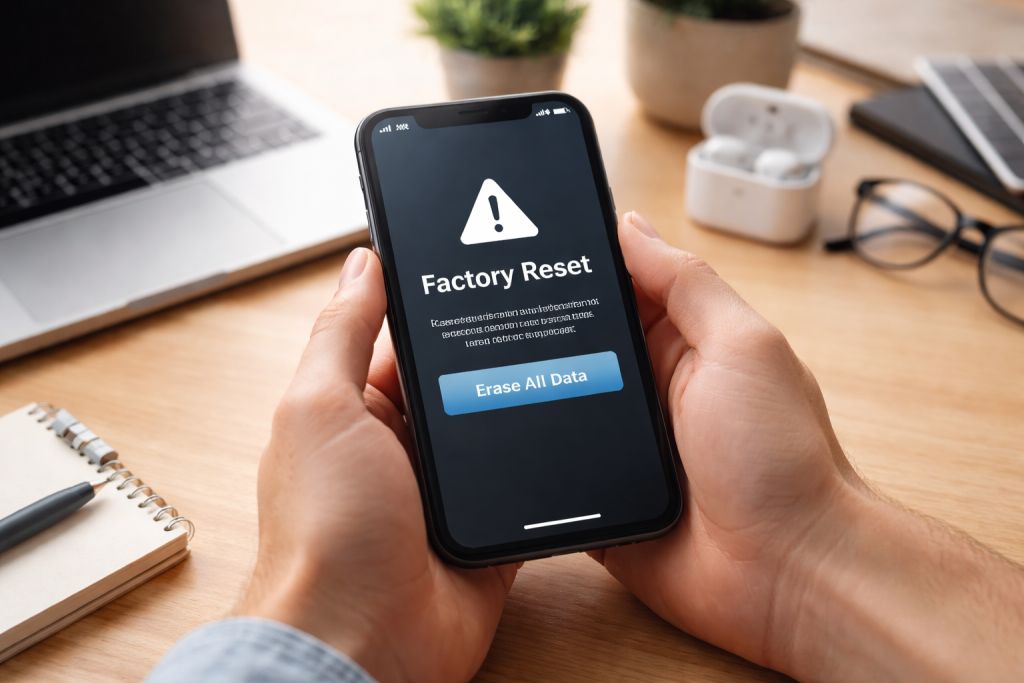
A factory reset, also referred to as a hard reset or master reset, restores your phone to its initial condition, as if it was brand new. This process erases all user data, including apps, photos, videos, contacts, messages, and settings. It also removes any malware or stubborn software issues. This type of reset is a complete data wipe. A factory reset is a clean slate operation, like emptying a canvas after a painting that didn’t go as planned. This type of reset is typically performed to fix significant software problems, improve performance on an aging device, or prepare a phone for sale or transfer.
==Step-by-Step Guide to Factory Resetting Your Phone==
Performing a factory reset requires careful attention to detail. Follow these steps to ensure a smooth process.
===Android Devices===
- Charge Your Phone: Ensure your phone has at least a 50% charge to prevent it from shutting down during the reset process.
- Access Settings: Open the ‘Settings’ app.
- Navigate to System: Scroll down and tap on ‘System’ or ‘General Management,’ depending on your Android version and device manufacturer.
- Locate Reset Options: Tap on ‘Reset options’ or ‘Reset.’
- Select Factory Data Reset: Choose ‘Erase all data (factory reset)’ or a similar option.
- Confirm: You may be prompted to enter your PIN, pattern, or password. Read the warning carefully, which explains that all data will be erased. Confirm your decision.
- Erase All: Tap ‘Erase all’ or ‘Reset phone.’ The phone will restart and begin the reset process. The process may take several minutes.
===iOS Devices (iPhones)===
- Charge Your iPhone: Connect your iPhone to a charger to prevent power loss during the reset.
- Open Settings: Tap the ‘Settings’ icon.
- Go to General: Scroll down and tap ‘General.’
- Find Transfer or Reset iPhone: Scroll to the bottom and tap ‘Transfer or Reset iPhone.’
- Erase All Content and Settings: Tap ‘Erase All Content and Settings.’
- Continue: You will see a summary of what will be erased. Tap ‘Continue.’
- Enter Passcode: Enter your iPhone passcode.
- Apple ID Password: If prompted, enter your Apple ID password to turn off Activation Lock and remove the device from your account. This is a crucial step for selling or giving away your iPhone.
- Erase Now: Tap ‘Erase Now.’ The iPhone will restart and perform the reset.
==Ensuring Your Data is Secure During the Reset Process==
While a factory reset aims to erase all data, some advanced recovery methods might theoretically retrieve fragments of information. For absolute data security, especially when selling your phone, additional steps are recommended.
===Encryption Before Reset===
Most modern smartphones encrypt their data by default. Verify that encryption is enabled in your phone’s security settings. If it’s not, encrypt your device before performing a factory reset. Encryption scrambles your data, making it unreadable without the correct key. Even if someone were to recover erased files, they would be gibberish without the decryption key, which is also cleared during a factory reset. Using encryption is like shredding documents before throwing them away; even if someone pieces them together, they are unreadable without a master decryption key.
===Overwriting Data (for Extreme Security) ===
For maximum security, some recommend filling your phone with unimportant data after a factory reset, then performing another factory reset. This overwrites the sectors where your personal data once resided with new, meaningless data. This practice is akin to cleaning a whiteboard and then covering it with random scribbles before cleaning it again; the original message is thoroughly obscured. This method is generally considered overkill for most users but offers a high level of assurance.
==Restoring Your Data After the Reset==
Once your phone has been reset and you’ve gone through the initial setup process, you can begin restoring your backup data.
===Google Account Restoration (Android)===
During the initial setup of your Android phone, you will be prompted to sign in with your Google account. If you backed up your data to Google Drive, you will have the option to restore apps, contacts, call history, device settings, and SMS messages. Select the most recent backup available. Photos and videos synced with Google Photos will automatically reappear once you log into the Google Photos app.
=== iCloud Restoration (iOS) ===
After a factory reset, during the iPhone’s setup process, select ‘Restore from iCloud Backup. ‘Sign in with your Apple ID and choose the desired backup from the list. The time it takes to restore depends on the size of your backup and your internet speed. Photos synchronized with iCloud Photos will be accessible once you log in with your Apple ID.
===Local Backup Restoration===
If you opted for a local backup to a computer or external drive, reconnect your phone. Use the manufacturer’s companion software or simply copy the backed-up files back to the relevant folders on your phone. Reinstall apps manually from the app store and restore any in-app data using the app’s internal backup features.
==Troubleshooting Common Issues After Resetting Your Phone==
Sometimes, a reset doesn’t go exactly as planned, or new issues emerge. Understanding how to troubleshoot these can save time and frustration.
===Performance Issues After Reset===
Occasionally, a phone might feel slower immediately after a reset. This is often temporary, as the phone re-indexes files and re-downloads apps and their data. Give your device some time to settle. If performance issues persist, check for available system updates, as these often contain bug fixes and performance improvements.
===App Crashes or Malfunctions===
If specific apps crash after restoration, try clearing their cache and data in the phone’s ‘App settings.’ If that doesn’t work, uninstall and then reinstall the problematic app. Sometimes, cached data from a previous state can conflict with the fresh installation environment.
===Battery Drain===
Increased battery drain after a reset can occur as apps re-download data, background processes re-index, and the system optimizes itself. Monitor your battery usage in the settings to identify any specific apps consuming excessive power. Ensure all apps are updated to their latest versions, as updates often include battery optimizations.
===Connectivity Problems===
If you experience Wi-Fi, Bluetooth, or cellular data issues, first try a network settings reset, as described earlier. Double-check your Wi-Fi password and ensure your Bluetooth device is in pairing mode. For cellular data, confirm your APN settings are correct (these are usually automatically configured by your carrier).
===Missing Data After Restoration===
If you find that certain data is missing after restoration, revisit your backup source. Ensure the backup you selected was the most recent and complete. If using cloud services, check the cloud account directly to verify that the data exists there. For local backups, confirm the files were successfully copied back to the phone. In some rare cases, data corruption during the backup or restore process can occur, emphasizing the importance of multiple backup methods.
Resetting your phone, when done correctly, is a powerful tool for maintaining device health and securing personal information. By following these steps, you can navigate the process with confidence and ensure a smooth experience.
FAQs
1. Why is it important to back up your data before resetting your phone?
It is important to back up your data before resetting your phone to ensure that you do not lose any important information such as contacts, photos, and documents. Backing up your data allows you to easily restore it after the reset process is complete.
2. What are the different reset options for a phone, and how do they differ?
There are generally two main reset options for a phone: a soft reset and a factory reset. A soft reset simply restarts the phone and does not delete any data, while a factory reset erases all data and restores the phone to its original settings.
3. What are the steps for safely factory resetting your phone?
The steps for safely factory resetting your phone typically involve backing up your data, disabling any security features such as Find My iPhone or Google Account Protection, and then navigating to the “Reset” or “Backup & Reset” section in your phone’s settings to initiate the factory reset.
4. How can I ensure that my data is secure during the reset process?
To ensure that your data is secure during the reset process, it is important to disable any security features, back up your data to a secure location such as a cloud storage service or a computer, and ensure that you are connected to a secure and stable Wi-Fi network.
5. What are some tips for protecting my personal information when resetting my phone?
Some tips for protecting your personal information when resetting your phone include logging out of all accounts, removing any SIM or SD cards, and performing a thorough data wipe before resetting. Additionally, it is important to be cautious of phishing attempts and only download apps from trusted sources after the reset.