
Mastering Your New Android Phone: A Comprehensive First-Time Setup Guide
Initially, setting up a new Android phone can be a daunting task. This guide aims to walk you through the process, from the initial power-on to personalizing your device for everyday use.
A setup wizard will greet you upon powering on your new Android phone. This wizard guides you through the crucial steps of preparing your device. The first screen typically prompts you to select your language. Pick your preferred language, as it will be the phone’s main interface language.
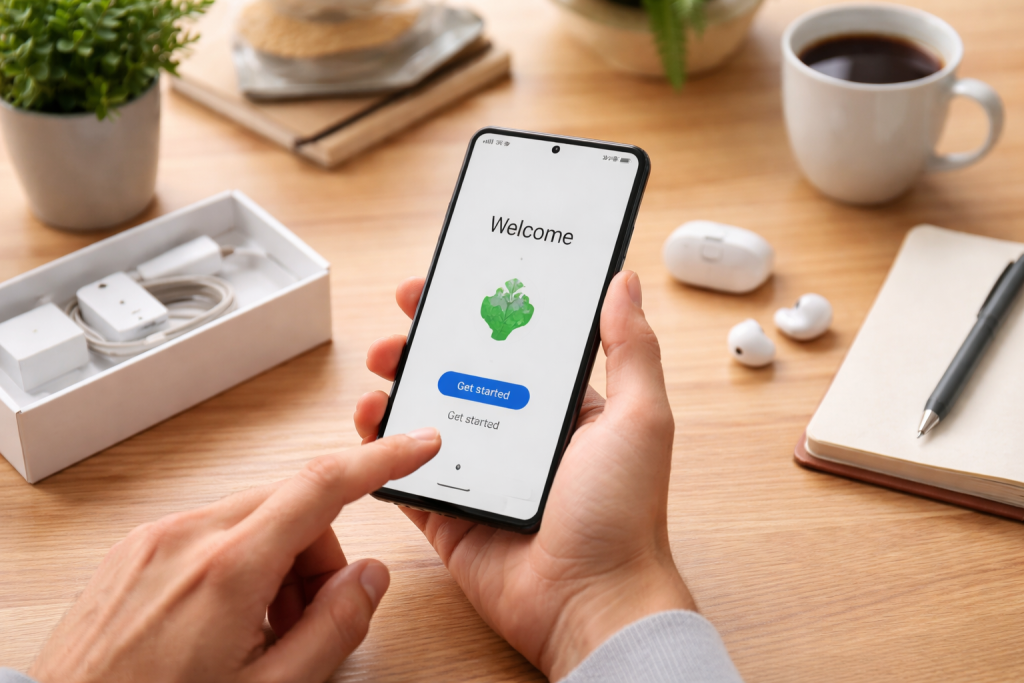
Next, you will be asked to connect to a Wi-Fi network. For the most efficient setup, it is recommended to connect to a stable Wi-Fi connection rather than relying solely on mobile data, as the setup process may download a significant amount of data. If you do not have Wi-Fi access, you can choose to skip this step and proceed with mobile data, but be mindful of your data plan.
Following the network connection, you will encounter the option to copy apps and data from a previous device. Android offers seamless migration options, allowing you to transfer settings, apps, contacts, photos, and more from an older Android phone or even an iPhone. Follow the on-screen prompts, which will guide you through connecting your old device (either wirelessly or via cable) and selecting what data you wish to transfer. This can save considerable time and effort compared to manually reinstalling everything.
Signing In to Your Google Account
A crucial step in the setup is signing in with your Google account. This account is the central hub for many Android services. If you already have a Google account (e.g., for Gmail, Google Drive), you will enter your email address and password. If you do not have one, the setup wizard will provide an option to create a new Google account. This account acts as your digital passport to the Google ecosystem, unlocking access to the Play Store, cloud backups, and synchronization services.
Your Google account serves as the cornerstone of your phone experience. Without it, many of its powerful features remain locked. The setup process will prompt you to review and accept Google’s terms of service and privacy policies. It is advisable to read these documents to understand how your data is handled.
Setting Up Security Features
Once your Google account is configured, you will be guided through setting up security measures. This is a vital step to protect your personal information. The most common security options include a PIN, password, pattern, or fingerprint unlock.
- PIN: A short numeric code.
- Password: A combination of letters, numbers, and symbols.
- Pattern: A series of connected dots on a grid.
- Fingerprint: Using your registered fingerprint to unlock the device. Many modern phones also support facial recognition.
Choose a method that you find both secure and convenient. It is recommended to combine a strong screen lock with other security features offered by your phone manufacturer and Google. Setting up these measures now will prevent potential headaches later if your phone is lost or stolen.
With the core setup complete, your phone is ready for personalization. This is where you begin to mold the device to your preferences, making it a unique tool that reflects your style and workflow.
Navigating the Home Screen and App Drawer
Your home screen is your primary workspace. It’s where you place your most frequently used apps and widgets. Android phones typically allow you to have multiple home screen pages, which you can populate with icons and interactive widgets. To move an app icon, long-press it and drag it to your desired location. You can also create folders by dragging one app icon onto another.
The app drawer, usually accessed by swiping up from the bottom of the home screen, contains all the applications installed on your device. This is a neat way to keep your home screens uncluttered. You can also search for apps directly from the app drawer.
Customizing Wallpapers and Themes
Your phone’s visual appearance can be changed through wallpapers and themes. Long-pressing on an space on your home screen usually brings up options to change the wallpaper, add widgets, or access other theme settings.
Wallpapers can be static images or live wallpapers, which are animated backgrounds. Themes often extend beyond just the wallpaper, altering icon styles, font colors, and system sounds. Many manufacturers provide their theme stores or customization apps. Exploring these options allows you to give your phone a distinctive look and feel.
Widgets and Their Utility
Widgets are miniature applications that display information or provide quick access to app functions directly on your home screen. Examples include weather widgets, calendar overviews, music player controls, and news feeds. To add a widget, long-press on your home screen, select “Widgets,” and then drag your chosen widget to a desired spot.
Widgets are like strategically placed dashboard indicators on your personal data console. They offer glanceable information without needing to open the full application, saving you time and taps. Experiment with different widgets to see which ones best suit your daily routine.
Adjusting Display Settings
The display settings allow you to fine-tune how your screen looks and behaves. You can adjust brightness, font size, and display resolution. Here you will also find options for “Night Light” or “Eye Comfort Shield,” which reduce blue light emission to make viewing more comfortable in low-light conditions, particularly in the evening.
While your new Android phone comes with many pre-installed applications, you will likely want to install and configure additional ones to enhance its functionality. This section covers the essential apps and their initial setup.
The Google Play Store: Your App Emporium
The Google Play Store is the primary source for downloading applications, games, movies, books, and music for your Android device. You will need your Google account signed in to use it. Browse categories, search for specific apps, or check out curated lists of popular and trending applications.
When you find an app you want, tap “Install.” Many apps require permissions to be granted when they are installed or used for the first time. These permissions allow apps to access certain functions or data on your phone, such as your camera, contacts, or location. It is important to review these permissions and only grant what you believe is necessary for the app to function correctly.
Communication and Productivity Apps
Beyond the pre-installed Google suite (Gmail, Google Calendar), you might want to explore other communication and productivity tools.
- Messaging Apps: While Android has a default SMS/RCS app, many users prefer third-party messaging platforms like WhatsApp, Signal, or Telegram for cross-platform communication.
- Email Clients: If you use email services other than Gmail, you will need to download and configure an appropriate email app. Most popular email providers have their own mobile apps.
- Cloud Storage: Beyond Google Drive, services like Dropbox, OneDrive, or Mega offer alternative cloud storage solutions.
- Note-Taking Apps: For more advanced note-taking, consider apps like Evernote, OneNote, or Obsidian, which offer features like web clipping and syncing across devices.
Setting up these apps often involves signing into your respective accounts for those services. For example, when adding a non-Gmail account to your phone’s email app, you will be prompted to enter your username and password for that email provider.
Media and Entertainment
Your phone is a portable entertainment device. Consider these types of apps:
- Music Streaming: Services like Spotify, Apple Music, or YouTube Music allow you to stream vast libraries of music.
- Video Streaming: Platforms such as Netflix, Hulu, Disney+, or YouTube are popular choices for watching videos.
- Podcasts: Dedicated podcast apps like Google Podcasts, Pocket Casts, or Castbox can help you discover and subscribe to your favorite shows.
- Photo and Video Editing: Basic editing can be done with built-in tools, but for more creative control, explore apps like Snapseed or Adobe Lightroom Mobile.
Essential System Configurations
- Data Usage: Navigate to Settings > Network & Internet (or similar) > Data Usage. Here you can monitor your data consumption, set data limits to avoid exceeding your plan, and identify which apps are using the most data. This is crucial for managing your mobile data budget.
- Battery Saver: Most Android phones have a battery saver mode. This can be found in Settings > Battery. It conserves power by limiting background activity, reducing screen brightness, and disabling certain features. You can often set it to activate automatically when your battery level drops below a certain percentage.
- Notifications: In Settings > Notifications, you can control which apps can send you notifications and how they appear. You can silence notifications from less important apps or prioritize urgent ones.
Your Android phone serves as a central hub for managing your personal and professional life. Efficiently organizing your contacts, calendar, and email is key to maximizing its utility.
Synchronizing Your Contacts
Your Google account is the primary method for synchronizing your contacts. Typically, your Google account saves new contacts by default. This ensures that your contacts are backed up and accessible across all your logged-in devices. If you previously used a different service to store contacts, you may have options to import them during setup or by downloading a contact file and importing it through your Google account settings or a dedicated contacts app.
You can typically access and edit your contacts through the dedicated “Contacts” app on your phone. You can also manage your contacts through the Google Contacts website. This synchronization acts as your digital address book’s safety net, ensuring you don’t lose touch with important people.
Organizing Your Schedule with the Calendar
The Google Calendar app is the default option for most Android phones. It allows you to create events, set reminders, and invite others. Crucially, it syncs with your Google account, making your schedule available on your computer and other devices.
If you use other calendar services (e.g., Outlook Calendar, Apple Calendar via third-party apps), you can often add these accounts to your Google Calendar app or use dedicated apps for those services for synchronization. For example, to add an Outlook calendar, you would typically navigate to your phone’s Accounts settings, add an Outlook account, and then choose to sync the calendar. This keeps all your appointments in one searchable place.
Configuring Your Email Accounts
Beyond Gmail, you will likely want to add other email accounts to your phone. Open the Gmail app, tap your profile picture or the menu icon, and select “Add another account.” From here, you can choose the type of account (e.g., Outlook, Yahoo, Exchange) and follow the prompts to enter your login credentials.
Once added, you can manage notifications and sync settings for each email account individually. This allows you to have all your important communications accessible from a single application, streamlined for quick review.
Protecting your personal data is paramount. Android provides a robust set of tools and settings to safeguard your device and information.
Understanding Permissions
Apps require permissions to access certain features or data. You can review and manage these permissions for each app. Navigate to Settings > Apps. Select an app, and then tap “Permissions.” Here you can see what permissions have been granted and revoke any that you are uncomfortable with. For example, an app like a calculator typically does not need access to your contacts or location.
Being judicious with app permissions is like carefully choosing who you give keys to your house; only grant access to those who genuinely need it for the intended function.
Google Play Protect
Google Play Protect is a built-in security feature that scans apps for malware both on the Play Store and on your device. It automatically checks installed apps for harmful behavior and can notify you or remove malicious applications. Ensure that “Google Play Protect” is enabled in your Google Play Store settings.
This feature acts as a digital guard dog, constantly patrolling for threats in the app ecosystem.
Location Services
Location services can be enabled or disabled entirely or set to grant permission only when an app is in use. To manage this, go to Settings > Location. You can also see a list of apps that have recently accessed your location. Adjust these settings based on your privacy preferences and the needs of the apps you use.
Account Security
Regularly review your Google account security settings. This includes enabling two-factor authentication (2FA) for an extra layer of security. When logging into your Google account, after entering your password, you will be prompted for a second verification step, such as a code sent to your phone or a prompt on another trusted device. This makes it significantly harder for unauthorized individuals to gain access to your account, even if they obtain your password.
Once you are comfortable with the basics, exploring some advanced tips can unlock more of your Android phone’s potential.
Utilizing Google Assistant
Google Assistant is your voice-activated virtual helper. You can activate it by saying “Hey Google” or “Ok Google” (if enabled) or by long-pressing the home button or power button (depending on your phone model). Use it to set reminders, send messages, make calls, get directions, control smart home devices, and much more. Customizing its settings can tailor its responses and features to your needs.
Google Assistant is like having a personal concierge in your pocket, ready to assist with a wide range of tasks through simple voice commands.
Exploring Developer Options
Developer options offer advanced settings for users who want to fine-tune their device’s performance or behavior. To enable developer options, go to Settings > About phone and tap “Build number” seven times. A toast notification will appear indicating that you are now a developer. Once enabled, a new “Developer options” menu will appear in your main Settings menu.
Caution: These settings are intended for advanced users and can affect your phone’s performance if not used correctly. Common uses include adjusting animation speeds to make the interface feel snappier or enabling USB debugging for development purposes.
Managing Storage Effectively
As you download apps and media, your phone’s storage can fill up. Navigate to Settings > Storage to see how your storage is being utilized. Android provides tools to help you manage this, such as suggesting files to delete or offloading less-used apps to free up space. Regularly clearing cache data for apps and deleting unnecessary files, photos, and videos can prevent storage issues.
Battery Optimization Tips
Beyond the basic battery saver mode, you can optimize battery life by adjusting app settings. Some apps consume more power in the background. In Settings > Battery > Battery Usage, you can see which apps are using the most battery. For certain apps, you can restrict background activity or disable features that are not essential to their core function.
By understanding and implementing these steps, you can transform your new Android phone from a brand-new device into a personalized, efficient, and secure extension of yourself.
FAQs
1. What are the essential steps for setting up a new Android phone for the first time?
To set up a new Android phone for the first time, you will need to go through the initial setup process, which includes connecting to a Wi-Fi network, signing in with your Google account, setting up a screen lock for security, and customizing your preferences such as language, date and time, and Google services.
2. What are some essential apps and features to install and configure on a new Android phone?
Some essential apps and features to install and configure on a new Android phone include a launcher for customizing the home screen, a file manager for organizing files, a messaging app for communication, a web browser for internet browsing, and essential Google apps such as Gmail, Google Maps, and Google Drive.
3. How can I manage my contacts, calendar, and email on my Android phone?
You can manage your contacts, calendar, and email on your Android phone by syncing your Google account to access your contacts and calendar events, setting up your email account in the Email app or Gmail app, and using the built-in Contacts and Calendar apps to manage and organize your information.
4. What are some security and privacy settings I should consider for my Android phone?
Some security and privacy settings to consider for your Android phone include setting up a screen lock for device security, enabling Find My Device for locating and remotely controlling your phone, managing app permissions to control what data apps can access, and using Google Play Protect for app security.
5. What are some tips and tricks for maximizing my Android phone’s potential?
Some tips and tricks for maximizing your Android phone’s potential include customizing your home screen with widgets and shortcuts, using Google Assistant for voice commands and assistance, exploring the Google Play Store for new apps and games, optimizing battery usage with power-saving modes, and regularly updating your phone’s software for performance and security improvements.