
Stay Chill: Tips and Tricks for Preventing Laptop Overheating
Laptop overheating is a common problem, affecting performance and lifespan. Understanding its causes, recognizing signs, and implementing preventive measures are essential for any laptop user.
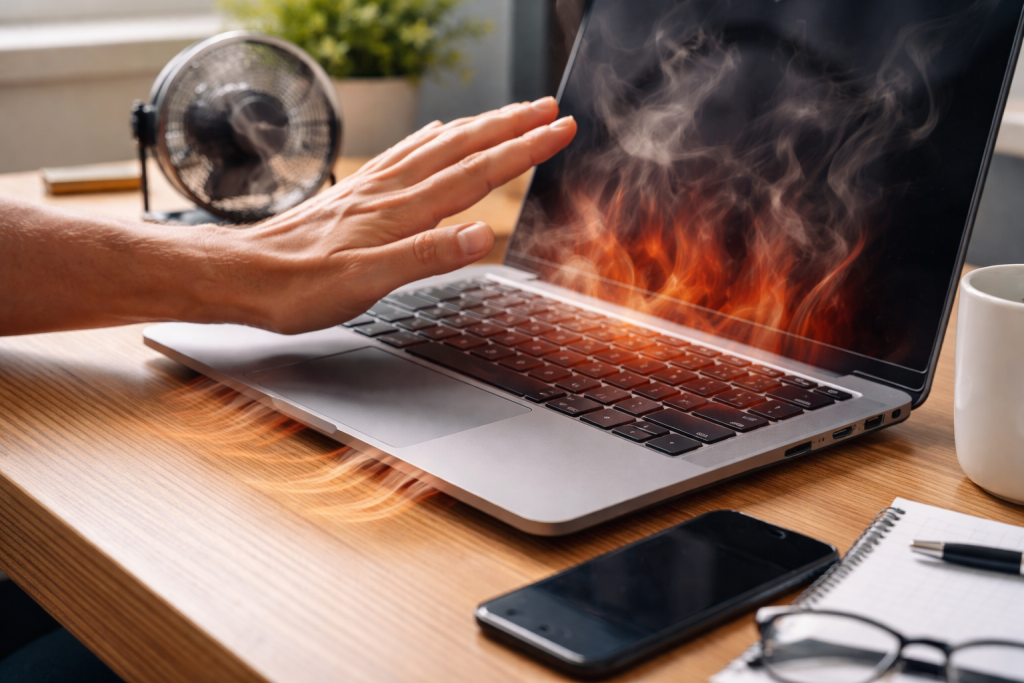
==Understanding Laptop Overheating==
Overheating occurs when a laptop’s internal components generate more heat than its cooling system can dissipate. This can lead to a range of issues, from decreased performance to permanent hardware damage. Modern laptops, with their slim designs and powerful processors, are particularly susceptible to this problem.
===Causes of Heat Generation===
The primary source of heat in a laptop is its central processing unit (CPU) and graphics processing unit (GPU). These components work intensely, especially during demanding tasks like gaming, video editing, or running multiple applications simultaneously. Their electrical resistance generates heat as a byproduct of computation.
Other components also contribute to internal temperature. The hard drive, especially traditional spinning disk drives, generates heat during operation. Memory modules (RAM) and the chipset also emit heat, though typically less than the CPU and GPU. The power delivery system, including voltage regulators, also warms up during use.
===Factors Impeding Heat Dissipation===
A laptop’s cooling system relies on airflow. Dust accumulation is a major impediment. Over time, dust, lint, and pet hair can clog vents and fans, creating a suffocating blanket within the machine. This buildup acts as an insulator, trapping heat and reducing the efficiency of the fans.
Environmental factors play a significant role. Using a laptop on soft surfaces like beds, blankets, or pillows blocks air vents. These materials absorb heat and prevent cool air from entering the chassis. High ambient temperatures, such as those experienced in hot climates or unventilated rooms, also make it harder for the laptop to shed heat. Poorly designed laptop chassis, with insufficient ventilation openings or restrictive internal layouts, can also hinder airflow.
Software can also contribute to overheating. Unoptimized applications or processes running in the background can keep the CPU and GPU under constant load, generating excessive heat. Malware or viruses can also cause abnormal CPU usage, leading to higher temperatures.
==Importance of Preventing Laptop Overheating==
Preventing a laptop from overheating is not merely about comfort; it is critical for preserving device health and performance. Ignoring overheating can lead to a cascade of problems, impacting both your immediate user experience and the long-term viability of your machine.
===Performance Degradation===
When a laptop overheats, its internal components, particularly the CPU and GPU, protect themselves by reducing their operating speed. This process, known as thermal throttling, is a self-preservation mechanism. Imagine a marathon runner slowing down to avoid collapse; your laptop does the same. This throttling manifests as noticeable slowdowns, stuttering, and reduced frame rates in games. Tasks that once ran smoothly now take longer, and the overall responsiveness of the system diminishes. The hotter the laptop gets, the more aggressively it throttles, creating a vicious cycle of heat and reduced performance.
===Reduced Lifespan and Hardware Damage===
Sustained exposure to high temperatures accelerates the degradation of electronic components. The delicate solder joints that connect chips to the motherboard can weaken and crack over time. Capacitors, critical for stable power delivery, can dry out or fail. The lifespan of batteries is also significantly shortened by constant heat exposure. In severe cases, extreme heat can cause outright component failure, rendering parts of the laptop inoperable. These events can necessitate costly repairs or even a full replacement of the device. Think of heat as a slow but persistent corrosive agent, slowly eating away at the integrity of your laptop’s internal structure.
===Safety Concerns===
While less common with well-maintained laptops, extreme overheating can pose a fire hazard. Lithium-ion batteries, when subjected to excessive heat or damage, can swell, vent, or even ignite. Such an event is a rare occurrence but underscores the importance of proper cooling. At the very least, a severely overheated laptop can be uncomfortable or even painful to touch, making it difficult to use on one’s lap.
== Tips for Improving Laptop Cooling ==
Effective cooling measures can mitigate overheating and prolong your laptop’s life. These strategies range from simple user habits to more involved maintenance.
===Optimize Software Settings===
Consider your laptop’s power settings. On Windows, navigate to Power Options and choose a “Balanced” or “Power Saver” plan for everyday use. High-performance modes push the CPU and GPU to maximum capacity, generating more heat. On macOS, review the Energy Saver settings.
Monitor background processes. Open your task manager (Ctrl+Shift+Esc on Windows, Activity Monitor on macOS) and identify applications consuming excessive CPU resources. Close unnecessary programs. Update drivers regularly, especially graphics drivers, as these often include performance and efficiency improvements that can reduce heat generation. Antivirus software should be optimized to run scans during off-peak hours, preventing constant background activity that contributes to heat.
===Ensure Proper Usage Environment===
Always use your laptop on a firm, flat surface. This allows unrestricted airflow to the vents, which are typically located on the bottom and sides of the machine. Desks, stands, or lap desks are ideal. Avoid soft furnishings like beds, sofas, or pillows. These materials block vents and absorb heat, acting as an insulating layer around your laptop. Think of your laptop’s vents as lungs; they need clear air pathways to breathe.
Ensure the ambient room temperature is reasonable. If you are in a hot room, consider moving to a cooler area or using air conditioning or a fan to lower the room temperature around the laptop. Direct sunlight should be avoided, as it adds external heat to the system.
==How to Clean and Maintain Your Laptop for Optimal Cooling==
Regular cleaning is fundamental to a laptop’s cooling efficiency. Dust silently threatens internal components.
===External Cleaning===
Periodically inspect and clean the external vents. Use a soft brush or a can of compressed air to clear any visible dust or debris from these openings. Ensure the laptop is powered off before doing this. Do not stick sharp objects into the vents.
===Internal Cleaning===
More thorough internal cleaning requires opening the laptop. This process varies by model and may void warranties if not done correctly. If you are uncomfortable, seek professional help. If you proceed, power off and unplug the laptop, and remove the battery if possible. Carefully remove the bottom panel.
Once inside, locate the cooling fan(s) and heatsink fins. Use a can of compressed air, holding it upright and using short bursts, to blow dust out of the fan blades and heatsink fins. Be careful not to spin the fan blades too rapidly with the compressed air, as this can damage the bearings. Cotton swabs can help gently remove stubborn dust from fan blades.
Consider reapplying thermal paste. After several years, the thermal paste between the CPU/GPU and their respective heatsinks can dry out and become less effective. This is a more advanced task requiring careful removal of the heatsink, cleaning of old paste, and precise application of new thermal paste. This significantly improves heat transfer.
==Cooling Accessories and Gadgets for Laptops==
Various accessories can supplement a laptop’s built-in cooling system, offering additional help, especially in demanding situations or hot environments.
===Laptop Cooling Pads===
Cooling pads are external devices that sit beneath your laptop. They typically contain one or more fans that blow cool air upwards, across the laptop’s base, or draw hot air away. They elevate the laptop, improving natural airflow. Look for pads with adjustable fan speeds and ergonomic designs for comfort. Some pads allow you to direct airflow to specific hot spots. These are effective for users who frequently use their laptops on soft surfaces or for extended gaming sessions.
===External Fans and Desk Fans===
A simple desk fan, pointed at the laptop’s underside or exhaust vents, can provide additional airflow. While less specialized than a cooling pad, it can help dissipate heat from the immediate vicinity of the laptop, acting as a personal wind tunnel for your device.
===Laptop Stands and Risers===
Even without integrated fans, a simple laptop stand can significantly improve cooling. By elevating the laptop, these stands create an open space beneath the device, allowing natural convection to occur more effectively. This allows cool air to enter vents and hot air to exit more freely. Many stands also improve ergonomics, making typing more comfortable.
==Signs of Laptop Overheating and How to Address Them==
Recognizing the symptoms of an overheated laptop is the first step toward intervention. Ignoring these signs can exacerbate the problem.
===Performance Issues===
The most immediate sign is a noticeable drop in performance. Your laptop will feel sluggish. Applications will take longer to open, and switching between programs will be slow. If you are gaming, you’ll see reduced frame rates and stuttering. Video playback may experience skips or freezes. These are your laptop’s internal alarms, telling you it’s struggling.
===Excessive Fan Noise===
When a laptop heats up, its fans work harder to dissipate that heat. You will hear them spinning faster and louder than usual. This is a clear indicator that the cooling system is under stress. If the fans are constantly loudly whirring, even during light tasks, it’s a sign of a persistent heat problem.
===Hot Chassis and Vents===
Physically touching the laptop’s surface, especially near the vents, will reveal excessive heat. The keyboard and trackpad area might also feel uncomfortably warm. Hot air will be noticeably blowing out of the exhaust vents, and it might feel much warmer than usual.
===Unexpected Shutdowns or Freezes===
A laptop’s ultimate defense mechanism against critical overheating is to shut down abruptly. This is a safety feature designed to prevent permanent damage to components. If your laptop randomly shuts off without warning, especially during intensive tasks, overheating is a prime suspect. Frequent system freezes without apparent cause can also point to thermal issues.
===Addressing Overheating Immediately===
If you observe these signs, take immediate action. Save your work and close demanding applications. Power down the laptop and let it cool completely. Elevate the laptop on a hard surface or use a cooling pad. Clean the vents with compressed air. If the problem persists, consider a more thorough internal cleaning or professional service to reapply thermal paste. Do not continue to operate a severely overheated laptop, as this risks permanent damage. Treat your laptop with the care it deserves, and it will serve you faithfully.
Contents
- 1 FAQs
- 1.1 1. What are the common causes of laptop overheating?
- 1.2 2. Why is it important to prevent laptop overheating?
- 1.3 3. What are some tips for improving laptop cooling?
- 1.4 4. What are the best practices for using laptops in hot environments?
- 1.5 5. How can I clean and maintain my laptop for optimal cooling?
FAQs
1. What are the common causes of laptop overheating?
2. Why is it important to prevent laptop overheating?
3. What are some tips for improving laptop cooling?
4. What are the best practices for using laptops in hot environments?
5. How can I clean and maintain my laptop for optimal cooling?

Smart Tech Manual is a technology-focused platform dedicated to providing simple, clear, and beginner-friendly guides for everyday users.