
Demystifying the iPhone Control Center: Everything You Need to Know
The iPhone Control Center serves as a centralized hub for quick access to essential system functions and application shortcuts. It offers users immediate control over various device settings without navigating through the Settings application. This article aims to clarify the functionality, customization options, and common uses of the Control Center.
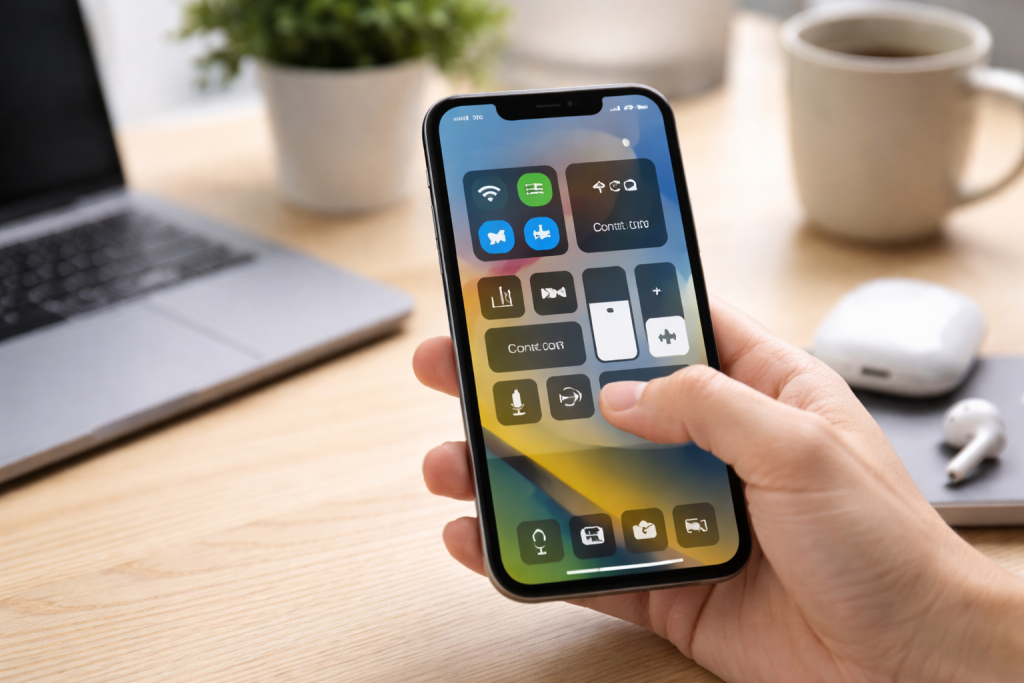
The iPhone Control Center is a customizable panel providing one-swipe access to frequently used controls and applications. Introduced with iOS 7, its design evolved over subsequent iOS versions to accommodate new features and user interfaces. Think of it as a utility belt for your iPhone, carrying the tools you need most often within easy reach. Its primary purpose is to streamline user interaction with core device features, reducing the steps required to perform common tasks. This efficiency is crucial in modern smartphone usage, where quick adjustments are often necessary.
Accessing the Control Center differs slightly depending on your iPhone model. These methods are designed for quick activation, recognizing the need for immediate control over device functions.
Contents
For iPhones with Face ID (iPhone X and later)
On iPhones without a physical Home button, accessing the Control Center involves a simple gesture. Swipe down from the top-right corner of the screen. This action reveals the Control Center overlaying your current application or Home screen. The gesture’s placement in the corner is deliberate, distinguishing it from the notification panel, which is accessed by swiping down from the center or left of the top edge.
For iPhones with a Home Button (iPhone 8 and earlier)
On older iPhone models equipped with a Home button, the access method is reversed. Swipe up from the bottom edge of the screen. This gesture brings up the Control Center from the bottom, consistent with earlier iOS navigation paradigms. This distinction in access methods reflects the architectural changes in iPhone design, particularly the removal of the Home button and the introduction of the ‘notch’ or Dynamic Island.
Upon opening the Control Center, you will observe a collection of modules. Each module represents a specific function or a group of related functions. These modules are logically grouped to enhance usability and provide a clear visual hierarchy.
Connectivity Toggles
This foundational module provides quick access to essential wireless connections.
Wi-Fi and Cellular Data
These toggles allow you to enable or disable Wi-Fi and cellular data with a tap. Immediately next to these, you may find options for Bluetooth and AirDrop, forming a cluster of connectivity controls. Tapping and holding on this block expands it, revealing more options like Personal Hotspot, furthering the concept of layered access.
Bluetooth and AirDrop
Bluetooth enables wireless connection to accessories like headphones and speakers. AirDrop facilitates direct file sharing between Apple devices. These are crucial for daily interaction with a broader ecosystem of devices.
Media Playback Controls
This section allows for management of audio and video playback.
Playback, Volume, and Scrubbing
This module displays the currently playing media, offering controls for play/pause, skipping tracks, and adjusting volume. A scrubber bar might also be present, allowing you to navigate within the media. If no media is playing, it provides shortcuts to recently used media apps. The ability to quickly manage audio output to different devices, such as AirPods or HomePods, is also available here, providing a virtual remote for your audio environment.
Device Orientation and Display Adjustments
These controls manage fundamental display and audio behaviors.
Orientation Lock
This toggle prevents the screen from rotating when you turn your device. It is particularly useful when reading or watching content in a fixed orientation.
Do Not Disturb
Activating Do Not Disturb silences notifications and calls, preventing interruptions. Pressing and holding this icon reveals further options, allowing you to set DND for a duration or until an event concludes, acting as a programmable quiet period.
Brightness Slider
A vertical slider allows for direct adjustment of the screen’s brightness. This is a frequently used control, vital for adapting the display to different lighting conditions.
Volume Slider
Similar to brightness, a dedicated slider adjusts the device’s overall volume. This offers more granular control than the physical buttons alone.
Utility Shortcuts
Beyond system settings, the Control Center offers quick access to practical tools.
Flashlight
Tap to turn the iPhone’s LED flash on or off, functioning as a portable flashlight. A long press may reveal brightness options for the flashlight itself.
Timer
Activating this shortcut launches a timer with preset durations or allows you to set a custom time. This is useful for various tasks, from cooking to quick reminders.
Calculator
This shortcut opens the default Calculator application, providing immediate access to mathematical functions.
Camera
Tapping this icon quickly launches the Camera application, bypassing the lock screen or Home screen navigation. This is often the fastest way to capture a spontaneous moment.
The true power of the Control Center lies in its adaptability. You are not confined to the default selection of controls; you can personalize it to reflect your usage patterns.
Adding and Removing Controls
To customize the Control Center, navigate to the Settings application, then select Control Center. Here, you will find two sections: “Included Controls” and “More Controls.”
Included Controls
This section lists the controls currently active in your Control Center. Tapping the red minus icon next to a control removes it from the “Included Controls” section, effectively deactivating it in the Control Center.
More Controls
This section presents a list of available controls that are not currently in your Control Center. Tapping the green plus icon next to a control adds it to the “Included Controls” section, making it accessible in the Control Center. This allows you to tailor your Control Center to be a highly personalized dashboard. For instance, if you frequently use the Voice Memos feature, you can add it for quick access, transforming your Control Center into a more potent personal assistant.
Rearranging Controls
Within the “Included Controls” section, you can also reorder the modules. Tap and hold the three horizontal lines (reorder handle) next to a control and drag it up or down to change its position. This allows you to place your most frequently used controls at the top for even faster access, reflecting the metaphor of a well-organized utility belt where the most essential tools are always readily accessible.
Beyond basic customization, there are several ways to leverage the Control Center’s capabilities for enhanced efficiency.
Using 3D Touch or Haptic Touch for Extended Options
Many Control Center modules are responsive to press gestures. Pressing firmly (3D Touch on older devices) or pressing and holding (Haptic Touch on newer devices) often reveals additional settings or functions related to that module. For example, pressing the Wi-Fi toggle expands it to show options for nearby networks. Similarly, pressing the Camera icon may offer shortcuts for taking a selfie, recording video, or capturing a portrait. This layered interaction transforms simple icons into gateways for deeper controls, allowing the Control Center to maintain a clean appearance while offering comprehensive functionality.
Accessing Device-Specific Controls
Some controls are device-dependent. For instance, if you have AirPods, the media playback module might show specific controls for your headphones. If your device supports it, the Low Power Mode toggle can be a valuable addition to conserve battery life temporarily.
Utilizing Accessibility Shortcuts
The Control Center can also house accessibility shortcuts. Through the Settings > Accessibility > Accessibility Shortcut menu, you can configure a triple-click of the Home or Side button to activate certain accessibility features. However, adding an “Accessibility Shortcuts” module to Control Center provides single-tap access to a configurable list of these features, offering an alternative and often faster way to toggle features like Guided Access or VoiceOver.
Several misunderstandings about the Control Center’s functionality persist among users. Clarifying these can enhance your understanding and usage.
Wi-Fi and Bluetooth Toggles: Not a Full Disconnect
A common misconception is that tapping the Wi-Fi and Bluetooth toggles in Control Center completely disables these radios. This is incorrect. Tapping these toggles disconnects from current networks or paired devices, but the radios themselves remain active for features like AirDrop, Handoff, and Apple Pencil connectivity. To fully disable Wi-Fi and Bluetooth, you must navigate to the main Settings app and toggle them off there. This behavior is intentional, designed to maintain seamless connectivity within the Apple ecosystem while allowing for quick, temporary disconnections.
Data Consumption and Background Refresh
Some users believe that open Control Center modules consume excessive data or battery. The Control Center itself is a static overlay when opened and does not inherently increase data consumption or background activity. The underlying services or applications are what consume resources, regardless of whether their Control Center module is visible or not.
While the primary functions are straightforward, the Control Center offers opportunities for deeper integration with iOS features.
Home Controls
For users with HomeKit-enabled devices, the Control Center can become a central hub for smart home management. By adding the Home control, you can quickly access scenes and accessories configured within the Home app. This means you can turn off lights, adjust thermostat settings, or lock doors without opening the Home app directly, further consolidating control. This transforms the Control Center from a simple device control panel into a gateway for your entire smart home ecosystem.
Screen Recording
The Screen Recording control is a highly useful feature for creating tutorials, sharing gameplays, or capturing on-screen issues. Once added to Control Center, a single tap begins recording your screen. A long press allows you to choose whether to record audio from your microphone as well, providing a versatile tool for content creation or troubleshooting.
Shazam Music Recognition
Integrating Shazam through the Control Center offers instant music identification. Add the Music Recognition control, and a tap will start identifying music playing around you or from your device, displaying the song title and artist directly within the Control Center or as a notification. This is a testament to the Control Center’s ability to pull in diverse functionalities for immediate access.
Wallet and Apple Pay
While not a direct control, a double-press of the side button (or Home button on older devices) typically invokes Apple Pay and Wallet. The Control Center often contains hints or recent payment options, subtly integrating with your financial tools. This proximity to your digital wallet further solidifies the Control Center’s role as a central access point for critical device functions and personal data.
The iPhone Control Center is a vital component of the iOS user experience. Its purpose is to provide immediate, customizable access to essential device settings and application shortcuts. By understanding its capabilities, customizing its layout, and utilizing advanced features, you can enhance your efficiency and streamline your interaction with your iPhone.
FAQs
What is the iPhone Control Center?
The iPhone Control Center is a convenient feature that allows users to quickly access and control various settings and functions on their iPhone, such as Wi-Fi, Bluetooth, screen brightness, music playback, and more.
How to access the Control Center on your iPhone
To access the Control Center on your iPhone, simply swipe down from the top-right corner of the screen if you have an iPhone X or later, or swipe up from the bottom of the screen for earlier iPhone models.
Understanding the different features and functions of the Control Center
The Control Center includes a range of features and functions, including toggles for Wi-Fi, Bluetooth, Airplane Mode, Do Not Disturb, screen brightness, volume control, music playback controls, and shortcuts to commonly used apps.
Customizing the Control Center to suit your needs
Users can customize the Control Center by adding, removing, or rearranging the toggles and shortcuts to suit their preferences. This can be done by going to Settings > Control Center > Customize Controls.
Tips and tricks for maximizing the use of the Control Center
Some tips for maximizing the use of the Control Center include using 3D Touch or Haptic Touch to access additional options for certain toggles, using the flashlight and camera shortcuts, and utilizing the screen recording feature.
Common misconceptions about the Control Center debunked
One common misconception is that the Control Center drains battery life, but in reality, it does not significantly impact battery usage unless certain features like Bluetooth or location services are left on.
Exploring advanced settings and hidden features of the Control Center
Advanced settings and hidden features of the Control Center include the ability to use Apple Pay, access HomeKit controls, enable guided access, and use accessibility shortcuts, among others.

Smart Tech Manual is a technology-focused platform dedicated to providing simple, clear, and beginner-friendly guides for everyday users.