
The Ultimate Manual for Android Gestures: Tips and Tricks for Smooth Navigation
Android gesture navigation provides a fluid and intuitive way to interact with your device. By understanding and utilizing these gestures, you can move through your device’s interface with greater speed and efficiency. This guide will cover the fundamentals and explore more advanced techniques to help you make the most of your Android experience.
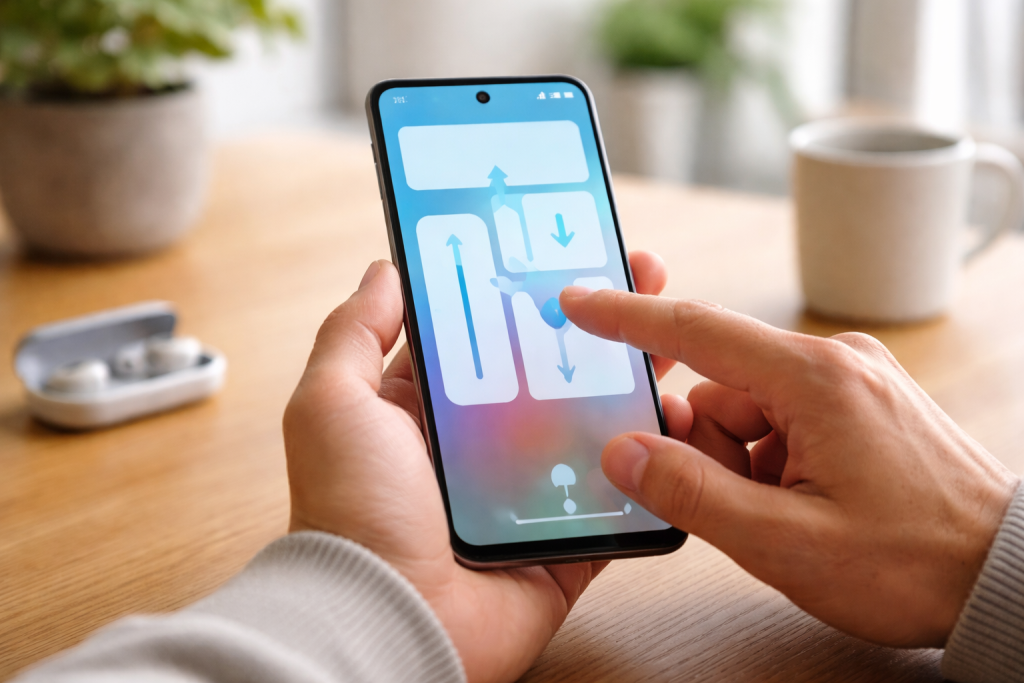
Android gesture navigation replaces the traditional three-button navigation bar with a system of swipes and touches. These gestures are designed to feel natural and reduce the physical movement required to perform common actions. Think of them as shortcuts etched into the fabric of your device’s interaction.
Contents
- 0.1 Navigating the Home Screen
- 0.2 Accessing the App Drawer
- 0.3 Using the Notification Shade and Quick Settings
- 0.4 Smooth App Switching
- 0.5 Interacting with Content
- 0.6 Using the Back Gesture Effectively
- 0.7 Utilizing Two-Finger Swipes
- 0.8 Accessing Context Menus with Gestures
- 0.9 System-Level Gestures for Power Users
- 0.10 Gestures for Screen Recording and Screenshots
- 0.11 System-Level Gesture Customization
- 0.12 App-Specific Gesture Settings
- 0.13 Third-Party Gesture Apps
- 0.14 Gestures Not Responding
- 0.15 Accidental Gesture Triggers
- 0.16 Conflicts with Third-Party Apps
- 0.17 Efficiently Managing Notifications
- 0.18 Quick Access to Information
- 0.19 Streamlining Frequent Actions
- 0.20 Multitasking Powerhouse
- 0.21 Keyboard Gestures
- 0.22 Manufacturer-Specific Gestures
- 0.23 Developer Options and Experimental Gestures
- 0.24 Accessibility Gestures
- 0.25 Customizing Touch Actions
- 1 FAQs
- 1.1 1. What are Android gestures, and why are they important?
- 1.2 2. What are some essential Android gestures for efficient navigation?
- 1.3 3. How can users customize Android gestures to suit their preferences?
- 1.4 4. What are some advanced Android gestures for power users?
- 1.5 5. How can users troubleshoot common issues with Android gestures?
The core of Android navigation revolves around returning to your home screen, accessing recent apps, and going back to the previous screen.
Returning Home
To return to your home screen from any app or menu, perform a simple swipe up from the bottom edge of your display. This is your direct path back to your personal hub.
Accessing Recent Apps
To see a list of your recently used applications, swipe up from the bottom edge of the screen and pause briefly near the middle. This action opens a carousel of your open apps, allowing you to switch between them by swiping left or right or by tapping on an app’s preview. To close an app from this view, swipe it upwards off the screen.
Going Back
The back gesture is fundamental to navigating within apps and between different screens. Swipe inwards from either the left or right edge of the display. This action will take you to the previous screen or close the current menu, depending on your context within the app. Mastering the back gesture is like having a personal undo button for your digital journey.
Accessing the App Drawer
The app drawer is where all your installed applications reside.
Opening the App Drawer
On most Android devices, you can access the app drawer by swiping up from the bottom of your home screen, above the dock. This presents a scrollable list of all your applications.
Using the Notification Shade and Quick Settings
The notification shade and quick settings panel are essential for managing alerts and adjusting device settings without leaving your current task entirely.
Opening the Notification Shade
Swipe down from the top edge of the screen once to reveal your notifications. Here, you can see incoming alerts from your apps.
Expanding Quick Settings
Swiping down a second time from the top edge of the screen expands the notification shade to reveal the Quick Settings panel. This panel provides quick access to toggles for Wi-Fi, Bluetooth, flashlight, screen rotation, and other frequently used settings.
Once you are comfortable with the basic gestures, you can refine your navigation to become more efficient. These essential gestures are the backbone of quick and seamless interaction.
Smooth App Switching
Beyond the recent apps screen, more direct methods exist for switching between applications.
Quick App Switching
When in the “Recent Apps” view, you can often quickly switch between your two most recent apps by swiping up from the bottom and then swiftly swiping left or right. Some devices allow an even faster method: a quick swipe left or right along the bottom edge of the screen to cycle through recent apps. This allows you to jump between your last two used applications without pausing to bring up the full recent apps overview.
Interacting with Content
Gestures are not limited to navigation; they also play a role in interacting with content within apps.
Pinch-to
In apps that support it, such as Galleries or web browsers, pinch two fingers together on the screen to zoom out and spread them apart to zoom in on images or web pages. This gesture is universal for adjusting the scale of visual content.
Long Press
A long press, holding your finger down on an item for a moment, often reveals additional options or context menus. For example, a long press on an app icon in your app drawer might bring up shortcuts for specific functions within that app or options to uninstall or add it to your home screen. Similarly, long-pressing text often allows you to select it for copying or other text-manipulation actions.
Using the Back Gesture Effectively
The back gesture is a powerful tool when used with intent.
While swiping from either edge works, understanding app design can help you use the back gesture more effectively. Swiping from the left edge accesses side menus in many apps. If you intend to trigger the back function, it is generally safer to swipe from the right edge to avoid accidentally opening a side menu.
For those who want to optimize their workflow, advanced gestures offer greater control and speed. These are the tools for those who want to shave seconds off their interactions.
Utilizing Two-Finger Swipes
Some devices incorporate gestures that involve two fingers for specific actions.
Two-Finger Volume Control
On certain devices, a two-finger swipe down from the top edge can control volume, while a two-finger swipe up might adjust brightness. This can be a convenient way to make quick adjustments without reaching for physical buttons or entering the Quick Settings panel.
Accessing Context Menus with Gestures
Beyond the long press, some interfaces offer gesture-based context menus.
App-Specific Gesture Shortcuts
While not universally available, some applications have implemented custom gesture shortcuts. For instance, a specific multi-finger swipe within a drawing app might bring up a color palette, or a particular gesture in a music player could skip to the next track. It is worth exploring the settings of your frequently used apps to see if they offer such enhancements.
System-Level Gestures for Power Users
Beyond basic navigation, some system-level gestures can significantly speed up your workflow.
Split-Screen Multitasking
To enter split-screen mode, which allows you to use two apps simultaneously, you can often access it from the recent apps screen. Tap on the app icon at the top of its preview and select the “Split screen” option. Alternatively, some devices allow you to drag an app from the recent apps list to the top or side of the screen to initiate split-screen mode. This is a powerful tool for comparing information, multitasking, or working between different applications.
Floating Windows
Some Android versions and custom interfaces support floating windows, where an app can be displayed in a smaller, resizable window that hovers over other applications. Accessing this feature often involves similar steps to split-screen activation or specific app shortcuts.
Gestures for Screen Recording and Screenshots
Capturing your screen is a common task, and gestures can expedite this.
Screenshot Gestures
The most common method for taking a screenshot is the button combination (Power + Volume Down), but many devices now support gesture-based screenshots. A common gesture is a three-finger swipe down from the top of the screen. Other devices might have a dedicated gesture option in their settings. Once taken, a preview of the screenshot usually appears, allowing you to quickly edit or share it.
Screen Recording Gestures
Similar to screenshots, screen recording can often be initiated through the Quick Settings panel. However, some devices might offer gesture-based activation for screen recording, often found within customizable gesture settings.
Android’s flexibility extends to its gesture system, allowing you to tailor it to your personal interaction style. This personalization is key to making your device feel truly yours.
System-Level Gesture Customization
Many Android devices offer built-in options to modify navigation gestures.
In your device’s settings, look for “System” or “Gestures.” Here, you will often find options to switch between gesture navigation and the traditional three-button navigation. Within gesture navigation, you may be able to adjust the sensitivity of the swipe areas for back, home, and recent apps. Some manufacturers even allow you to swap the positions of the back and recent apps gestures.
App-Specific Gesture Settings
You can enable or disable the gesture controls provided by some applications.
In-App Gesture Configuration
Within the settings of individual apps, you might find options to enable or disable specific gestures. For example, a note-taking app might allow you to assign a swipe gesture to quickly archive a note, or a photo editing app might let you customize swipe actions for moving between photos. It is always beneficial to explore the settings menus of your frequently used applications to discover these hidden customization options.
Third-Party Gesture Apps
For users who desire even more control, third-party applications offer a wide array of gesture customization.
Enhanced Control with Third-Party Apps
Applications like “Gesture Control” or “Tasker” (which can be programmed with gesture-based triggers) allow you to create custom gestures for virtually any action on your device. This can include launching specific apps, toggling settings, performing complex multi-step tasks, or even triggering custom macros. These apps can transform your device into a highly personalized command center, but they require a greater degree of technical understanding and can sometimes impact battery life.
Occasionally, you may encounter problems with your Android gestures not working as expected. Understanding common issues and their solutions can help you maintain a smooth user experience.
Gestures Not Responding
This is a common frustration but often has a simple fix.
Restart Your Device
As with many technical issues, the first and most effective step is often to restart your Android device. This can clear temporary glitches in the operating system that might be preventing gestures from functioning correctly.
Check for System Updates
Ensuring your Android operating system is up to date is crucial. System updates often address software bugs. Navigate to Settings > System > System Update and check for available updates.
Verify Gesture Settings
Double-check your gesture settings to confirm that gestures are enabled and configured as you intend. Sometimes, updates or accidental touches can alter these settings. If you are using a third-party gesture app, ensure it is enabled and has the necessary permissions.
Clear App Cache and Data (for specific apps)
If a gesture is not working within a particular application, clearing that app’s cache and data might resolve the issue. Go to Settings > Apps > [App Name] > Storage and select “Clear cache.” If that doesn’t work, you can try “Clear data,” but be aware that these steps will reset the app to its default state, meaning you’ll lose any saved settings or login information for that app.
Accidental Gesture Triggers
Sometimes, unintended gestures can disrupt your workflow.
Adjust Gesture Sensitivity
If you find yourself accidentally triggering gestures, particularly the back gesture, you might be able to adjust the sensitivity of the gesture areas within your device’s settings. Look for options related to “navigation sensitivity” or “edge swipe area.”
Practice and Familiarization
With consistent use, your muscle memory will adapt, and accidental triggers will become less frequent. Focus on deliberate and controlled swipes.
Conflicts with Third-Party Apps
When using multiple apps that manage gestures, conflicts can arise.
Disable Conflicting Apps
If you suspect a third-party app is causing issues, try disabling it temporarily to see if the problem resolves. If it does, you may need to reconfigure the settings of that app or find an alternative. Review the permissions granted to gesture-related apps in your device’s settings.
Integrating Android gestures into your daily routine can significantly boost your productivity. By streamlining navigation, you free up mental energy and save valuable time.
Efficiently Managing Notifications
Gestures can help you manage your notifications without disrupting your current task.
Quick Dismissal and Snoozing
Once your notifications are visible, swiping them left or right typically dismisses them. Some notification platforms offer a “snooze” option, allowing you to defer a notification to a later time. This helps keep your notification shade clean while ensuring you don’t miss important alerts.
Quick Access to Information
Gestures can bring information to your fingertips swiftly.
Voice Assistant Activation
Many devices allow you to activate your voice assistant (like Google Assistant) with a specific gesture. This is often a long press on the home button (if using three-button navigation) or a specific swipe from a corner of the screen when using gesture navigation. Voice assistants are powerful tools for performing quick searches, setting reminders, or controlling smart home devices without typing.
Streamlining Frequent Actions
Certain gestures can be mapped to frequently performed actions, turning complex tasks into simple swipes.
Customizing Quick Settings Access
While a double swipe down is standard for Quick Settings, some devices allow you to customize the initial swipe area or trigger quick settings with other gestures. This can be particularly useful if you find yourself constantly adjusting settings like Wi-Fi or Bluetooth.
Multitasking Powerhouse
Gestures are central to efficient multitasking on Android.
Seamless App Switching for Workflow
Mastering the quick app-switching gestures allows you to effortlessly move between apps that you use in conjunction. For example, if you’re comparing prices online, quickly switching between a shopping app and a web browser without navigating through menus becomes second nature. This fluidity is the essence of efficient digital work.
Keyboard Gestures
Beyond navigation, gestures are also integrated into your keyboard experience.
Swipe Typing
Most modern Android keyboards offer swipe typing, where you slide your finger over the letters to form words. This is often faster than traditional tapping once you become proficient. Experiment with the swipe sensitivity and accuracy settings of your keyboard app to optimize this feature.
Beyond the commonly known gestures, there are often less obvious or manufacturer-specific gestures that can further refine your interaction with your Android device. Discovering these can add another layer of efficiency.
Manufacturer-Specific Gestures
Different phone manufacturers often add their own unique gestures.
For Example: Motorola’s “Chop” Gesture
Motorola devices, for instance, have had features like the “chop” gesture to turn on the flashlight or a twist of the wrist to launch the camera. Samsung devices often feature Air Gestures, allowing interaction without touching the screen, such as answering calls by waving your hand. It’s worthwhile to explore your specific device’s settings and user manual to uncover these proprietary shortcuts.
Developer Options and Experimental Gestures
For advanced users, the Developer Options menu can sometimes reveal experimental gestures.
Unlocking Developer Options
To access Developer Options, go to Settings > About phone and tap on the “Build number” seven times. Once enabled, a new “Developer Options” menu will appear in your system settings. Within this menu, you might find experimental features or gesture-related toggles that are not part of the standard user interface. Caution: Modifying settings in Developer Options can affect your device’s performance and stability, so proceed with care and only change what you understand.
Accessibility Gestures
Android includes a suite of accessibility features that can be activated by gestures, intended to assist users with disabilities but also useful for others.
Accessibility Menu
The Accessibility Menu is a large on-screen menu that provides controls for accessibility features and common actions like taking screenshots, adjusting volume, and accessing notifications. It can be activated by a dedicated gesture, often a two-finger swipe up from the bottom of the screen. This can be a useful way to quickly access a variety of controls without navigating through multiple menus.
Customizing Touch Actions
The flexibility of Android allows for more than just standard swipes.
Touch & Hold Customization
In some cases, you can customize what happens when you touch and hold certain elements on your screen. For example, within accessibility settings, you might be able to adjust the duration of a touch-and-hold action or assign specific functions to it.
By understanding and utilizing the full spectrum of Android gestures, from the most basic swipes to more advanced and custom options, you can transform your device into a more intuitive, efficient, and personalized tool. Continuous exploration of your device’s capabilities and settings will reveal even more ways to enhance your user experience.
FAQs
1. What are Android gestures, and why are they important?
Android gestures are specific finger movements on the touchscreen that allow users to interact with their devices in a more intuitive and efficient manner. They are important because they enable users to navigate through their devices, access features, and perform actions with ease, ultimately enhancing the overall user experience.
Some essential Android gestures for efficient navigation include swiping to scroll through content, tapping to select items, pinching to zoom in or out, and using the back gesture to go back to the previous screen. These gestures help users quickly and seamlessly interact with their devices.
3. How can users customize Android gestures to suit their preferences?
Users can customize Android gestures by accessing the device’s settings and navigating to the “Gestures” or “Motions and Gestures” section. From there, they can enable, disable, or modify specific gestures, as well as create their own custom gestures to perform specific actions or shortcuts.
4. What are some advanced Android gestures for power users?
Some advanced Android gestures for power users include using multi-finger gestures for multitasking, utilizing gesture shortcuts to launch specific apps or actions, and employing gesture navigation to quickly switch between recent apps or access the app drawer. These gestures can significantly enhance productivity and streamline the user experience.
5. How can users troubleshoot common issues with Android gestures?
Users can troubleshoot common issues with Android gestures by ensuring that their device’s software is up to date, recalibrating the touchscreen sensitivity, checking for any physical damage to the touchscreen, and resetting the device’s gesture settings to default. Additionally, they can seek assistance from the device’s manufacturer or refer to online resources for specific troubleshooting steps.

Smart Tech Manual is a technology-focused platform dedicated to providing simple, clear, and beginner-friendly guides for everyday users.