
Unlocking the Power of System Settings Restoration: A Comprehensive Tutorial
Reverting system settings to a previous state can resolve a range of software problems. This process, often referred to as system settings restoration, can be a powerful tool for troubleshooting and maintaining optimal computer performance. Understanding when and how to use this feature is crucial for any user.
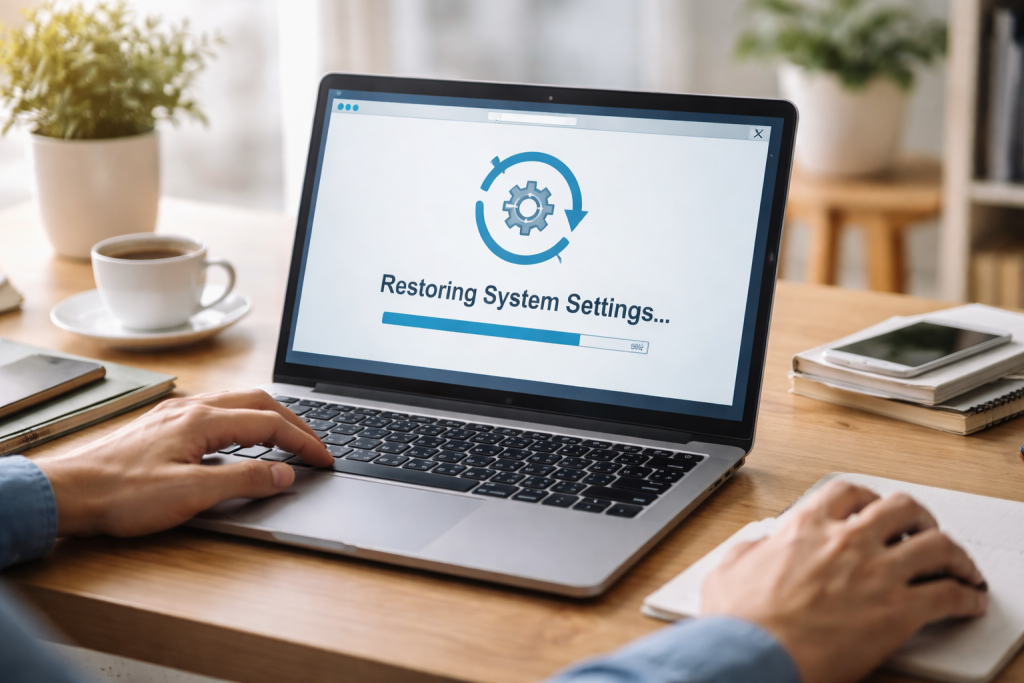
System settings define how your operating system and installed applications behave. They control everything from visual appearance to network configurations, power management, and how software interacts with hardware. Over time, these settings can become corrupted or altered in ways that lead to instability, errors, or unexpected behavior. Such changes can happen due to software installations, driver updates, accidental user modifications, or even malware.
When your system starts acting like a car that’s suddenly sputtering and misfiring, the engine might just need a reset to its factory settings. Similarly, system settings restoration acts as a diagnostic and repair mechanism for your digital environment. It enables you to restore your system’s configuration, effectively undoing any unwanted changes.
Contents
- 0.1 What Constitutes System Settings?
- 0.2 Why Restoration Becomes Necessary
- 0.3 Restoring Settings in Windows
- 0.4 Restoring Settings in macOS
- 0.5 Restoring Settings in Linux
- 0.6 Resolving Performance Issues
- 0.7 Fixing Software Errors and Instability
- 0.8 Recovering from Malicious Software or Accidental Changes
- 0.9 Restoring a Baseline Configuration
- 0.10 System Restore Points Unavailable or Corrupted
- 0.11 Restoration Fails to Complete
- 0.12 Personal Files Are Deleted (When Not Expected)
- 0.13 System Becomes Unbootable After Restoration
- 0.14 Regular Backups
- 0.15 Scheduled Restore Points
- 0.16 Documenting System Changes
- 0.17 Understand Restoration Options
- 0.18 Test Your Restoration Process
- 0.19 Prioritize Personal File Backups
- 0.20 Understand the Restoration Scope
- 0.21 Verify Restoration After Completion
- 0.22 Consider a “Clean Install” as a Last Resort
- 0.23 Proactive System Health Monitoring
- 0.24 Strategic Restore Point Creation
- 0.25 Combine Restoration with Other Troubleshooting Steps
- 0.26 Understand When Not to Restore
- 0.27 Utilize Intermediate Restoration Options
- 1 FAQs
- 1.1 restoration, 1. What is system settings restoration, and why is it important?
- 1.2 2. What are the benefits of restoring system settings?
- 1.3 3. What are some common issues that may arise during system settings restoration, and how can they be troubleshooted?
- 1.4 4. What are the best practices for system settings restoration?
- 1.5 5. How can data be safeguarded during the restoration process?
What Constitutes System Settings?
System settings encompass a broad spectrum of configurations. This includes:
Operating System Configurations
These are the core settings that govern the fundamental operations of your computer. They relate to:
User Accounts and Permissions
These settings determine how users can access and interact with the computer and its files.
Network and Internet Settings
The network and internet settings include connectivity options, Wi-Fi passwords, IP addresses, and proxy configurations.
Display and Sound Settings
The display and sound settings include settings for resolution, brightness, refresh rates, volume, and audio output devices.
Power Management Settings
Sleep modes, battery usage, and screen timeouts.
File and Folder Permissions
Access controls for various directories and files.
Application Configurations
Each program installed on your computer also has its own set of settings. While system settings restoration usually focuses on the operating system, some tools might offer more granular control over application configurations.
Default Application Settings
Which program opens specific file types? types?
Program Preferences
This includes customizations within individual applications, such as language, theme, or startup behavior.
Why Restoration Becomes Necessary
The need for system settings restoration typically arises when a computer exhibits specific symptoms:
Performance Degradation
A system that was once swift now feels sluggish, with slow startup times and unresponsiveness.
Application Conflicts
Programs are crashing unexpectedly or failing to launch after recent changes.
Hardware Malfunctions
Peripherals like printers or webcams stop working without apparent cause.
System Instability
Frequent error messages, blue screens of death (BSODs), or unexpected restarts.
Unwanted Software Behavior
Changes to system behavior that were not deliberately made by the user.
Restoration isn’t about starting from scratch but rather about clearing away the clutter and returning to a known good state, much like tidying up a workshop after a complex project to find the tools you need.
The process for restoring system settings varies depending on the operating system being used. This guide outlines the general approach for common operating systems.
Restoring Settings in Windows
Windows offers several built-in tools for system settings restoration. The most prominent are System Restore and Reset this PC.
Using System Restore
System Restore allows you to revert your operating system’s installed files, registry settings, and system services to a previous point without affecting your personal files.
Creating a Restore Point
Create a restore point before making any significant changes to your system. If problems arise later, this point can serve as a fallback.
- Search for “Create a restore point” in the Windows search bar and select the result.
- In the System Properties window, navigate to the System Protection tab.
- Select your system drive (usually C:) and click Configure.
- protection. “Ensure “Turn on system protection” is selected.
- Click Create.
- Give your restore point a descriptive name and click Create.
Performing a System Restore
Should you encounter issues, you can initiate a restore at a previously created point.
- Search for “Create a restore point” again and open System Properties.
- Go to the System Protection tab and click System Restore.
- Click Next.
- Choose a restore point from the list. If you don’t see the desired point, check the box for Show more restore points.
- Click Scan for affected programs to see which applications and drivers will be added or removed.
- Click Next, then Finish. Please confirm your decision to proceed.
Using Reset This PC
If System Restore doesn’t resolve the issue or if deeper intervention is required, “Reset this PC” offers a more comprehensive solution. It reinstalls Windows while giving you the option to keep or remove your personal files.
- Go to Settings > Update & Security > Recovery.
- Under “Reset this PC,” click Get started.
- Choose Keep my files (removes apps and settings but keeps personal files) or Remove everything (removes all personal files, apps, and settings).
- Follow the on-screen prompts to complete the reset.
Restoring Settings in macOS
macOS utilizes Time Machine, a powerful backup and restore utility, for system settings restoration.
Using Time Machine
Time Machine automatically backs up your entire system, including system settings, applications, and files. Restoring from Time Machine allows you to return your Mac to a previous state.
- Connect your Time Machine backup drive to your Mac.
- Restart your Mac and immediately press and hold Command + R to enter macOS Recovery.
- In the macOS Utilities window, select Restore from Time Machine Backup.
- Click Continue.
- Select your Time Machine backup disk and click Continue.
- Choose the specific backup date and time you wish to restore to.
- Select the destination disk (your Mac’s startup disk) and click Restore System.
- Your Mac will restart and begin the restoration process. This can take a significant amount of time.
Restoring Settings in Linux
Linux distributions offer various methods for system settings restoration, often relying on command-line tools or specific distribution-provided utilities.
timeshift Utility
Timeshift is a popular system restore utility for Linux that works similarly to System Restore in Windows. It creates system snapshots that can be used to revert your system to a previous state.
- Install
timeshift: If not already installed, open a terminal and use your distribution’s package manager. For example, on Ubuntu/Debian:sudo apt update && sudo apt install timeshift. - Launch
timeshift: Open the application from your application menu. - Create a snapshot: Follow the on-screen prompts to create a manual snapshot. You can also configure automated snapshots.
- Restore from a snapshot: Select the snapshot you wish to restore from the list of available snapshots and click the Restore button. You will be prompted to confirm the action.
Rolling Back Package Managers
(e.g.). Some Linux distributions utilize package managers that allow for rolling back system updates. This can effectively revert system settings that were altered by recent software installations or updates. The specific commands depend on the package manager (e.g.,).
The advantages of successfully restoring system settings can significantly improve your computing experience. It’s like hitting a reset button that clears away the confusion.
Resolving Performance Issues
One of the most common benefits is the elimination of performance degradation. When a system becomes sluggish due to accumulated junk files, registry errors, or conflicting configurations, a restoration can often bring back its original speed and responsiveness.
Reduced Lag and Freezing
Applications that were previously slow to load or prone to freezing may function seamlessly again.
Faster Startup and Shutdown Times
The boot process can be significantly accelerated by removing unnecessary startup programs or corrupted configuration files.
Fixing Software Errors and Instability
System configuration errors are a primary cause of application crashes and overall system instability.
Eliminating Application Crashes
If specific programs have been crashing consistently, restoring to a point before the issue began can resolve the problem.
Preventing System Freezes and Blue Screens
When the operating system itself becomes unstable, leading to BSODs or system freezes, a restoration can prevent further occurrences.
Recovering from Malicious Software or Accidental Changes
While not a replacement for antivirus software, system restore can sometimes revert changes made by less sophisticated malware or undo accidental, problematic user configurations.
Reversing Unwanted Software Installations
If you installed a program without your explicit consent and it’s causing issues, a restoration can remove it and its associated settings.
Undoing User Configuration Errors
Mistakes are part of the learning process. If you’ve inadvertently changed a critical setting that’s now causing problems, restoration can fix it.
Restoring a Baseline Configuration
At its core, system settings restoration allows you to return to a known working state. This can be particularly useful when troubleshooting complex issues, as it helps isolate whether the problem lies within the operating system’s configuration or with a specific piece of hardware or new software.
While system settings restoration is a powerful tool, it’s not always a foolproof solution. Understanding common pitfalls can help you navigate them.
Sometimes, you may attempt to use System Restore only to find that no restore points are available, or the existing ones are corrupted.
Tip: Ensure System Protection is Enabled
Regularly check that system protection is enabled for your drives. If it was turned off, no restore points would have been created.
Tip: Check Disk Space
System Restore uses disk space to store restore points. If your drive is critically full, new restore points may not be created, and old ones could be deleted.
Restoration Fails to Complete
Occasionally, the restoration process may get stuck or fail to complete successfully, leaving the system in an unpredictable state.
Tip: Try a Different Restore Point
If one restore point fails, attempt to use an older or a different restore point. The issue might be specific to the chosen point.
Tip: Boot into Safe Mode
If the restoration fails during normal boot, try performing the restoration from Safe Mode. This loads Windows with a minimal set of drivers and services, which can prevent conflicts.
Personal Files Are Deleted (When Not Expected)
While the intention of System Restore is to preserve personal files, certain circumstances or specific types of restoration might inadvertently affect them.
Tip: Always Back Up Important Data First
Before any significant system changes, including restoration, it’s crucial to back up your important personal files to an external drive or cloud storage. This acts as an ultimate safety net.
Tip: Understand the Scope of the Restoration
Be aware of whether you are using a standard System Restore or a more drastic reset feature like “Reset this PC” (which has options to keep or remove files).
System Becomes Unbootable After Restoration
In rare cases, a system restore can prevent the system from booting.
Tip: Use Startup Repair Tools
If your system won’t boot, utilize the Windows Recovery Environment (WinRE) or macOS Recovery Mode to access troubleshooting tools like Startup Repair.
Tip: Consider a Clean Installation
If restoration consistently fails or results in an unbootable system, a clean installation of your operating system might be the most reliable solution. This is a last resort, as it will erase all data on the system drive.
Adopting a proactive approach can minimize the need for restoration and ensure its effectiveness when required.
Regular Backups
The most critical best practice is the establishment of a robust backup strategy. This goes beyond system settings and includes your personal files, documents, photos, and other critical data.
Full System Images
Consider creating full system images periodically. These are complete snapshots of your entire hard drive, including the operating system, applications, and all data. In the event of hard drive failure or severe corruption, you can restore the entire system.
Cloud Backups
Utilize cloud backup services for important files. This provides off-site storage, protecting your data from local disasters like fire or theft.
Scheduled Restore Points
For Windows users, scheduling automatic creation of restore points can ensure you always have recent recovery options available.
Enable System Protection
Ensure system protection is turned on for your primary drives. Many operating system updates and driver installations will automatically create restore points if system protection is active.
Documenting System Changes
Keeping a log of significant software installations, driver updates, or configuration changes can be invaluable when troubleshooting.
Note-Taking
Use a simple text file or a dedicated notebook to jot down the date and nature of major changes. This can help you pinpoint which change might have introduced a problem.
Understand Restoration Options
Familiarize yourself with the different types of system restoration available for your operating system and their implications.
Purpose of Each Tool
Know the difference between System Restore (reverts settings) and Reset This PC (reinstalls OS). Understanding their specific functions allows you to choose the appropriate tool for the situation.
Test Your Restoration Process
Periodically run a test to ensure your backup and restoration methods are functional.
Simulated Recovery
If using a backup utility that creates system images, try restoring a single file or a small folder to confirm the process works. For Time Machine, you can enter the Time Machine interface and browse past backups.
Data protection is paramount during any system settings restoration process. Even tools designed to preserve data can sometimes lead to unintended data loss if not managed carefully.
Prioritize Personal File Backups
Prior to initiating any restoration process, such as “Reset this PC” or a complete system reset, make sure to externally back up all your critical personal files.
External Hard Drives and SSDs
Use reliable external storage devices to create copies of your documents, photos, videos, and any other irreplaceable data.
Cloud Storage Services
Leverage services like Google Drive, Dropbox, or OneDrive to sync and store important files. This provides a layer of redundancy.
Understand the Restoration Scope
Different restoration methods have varying impacts on personal data.
System Restore vs. Reset This PC (Windows)
System Restore in Windows typically only affects system files, registry keys, and installed programs, leaving personal files untouched. However, “Reset this PC” has explicit options to either keep your files or remove everything. Carefully select the “Keep my files” option if you only intend to fix system settings and want to retain your data.
Time Machine (macOS)
Time Machine restores your entire system to a previous state. It aims to restore all data to the backup point, but it’s best to have extra backups of vital files.
Verify Restoration After Completion
Once the restoration process is finished, take the time to verify that your personal files are intact and accessible.
Browse Your Files
Navigate through your user folders (documents, pictures, desktops, etc.) and check for the presence of important files.
Open Key Documents
Open a few critical documents or photos to ensure they are not corrupted.
Consider a “Clean Install” as a Last Resort
If you are uncertain about the restoration process or if previous attempts have been problematic, a clean installation of the operating system, while erasing all data, is often the most reliable way to ensure a fresh, error-free environment. However, this should only be considered after exhausting all other backup and restoration options.
Seasoned users employ specific strategies to leverage system settings restoration effectively, turning it into a powerful maintenance and recovery tool.
Proactive System Health Monitoring
Don’t wait for problems to arise. Regularly monitor your system’s health.
Software Updates
Keep your operating system and applications updated. Updates often contain bug fixes that can prevent issues requiring restoration.
Disk Space Management
Ensure sufficient free space on your system drive. Low disk space can cause performance issues and interfere with restoration processes.
Strategic Restore Point Creation
Think of restore points not just as a safety net but as strategic markers.
Before Major Software Installations
Always create a restore point before installing significant new software, especially complex applications or system utilities.
Before Driver Updates
Driver updates can sometimes cause conflicts. Creating a restore point beforehand allows for easy rollback if a new driver causes instability.
Before System Tweaks
If you’re making substantial changes to system settings or the registry (even with caution), document them and create a restore point.
Combine Restoration with Other Troubleshooting Steps
System settings restoration is one tool in a larger toolbox.
Malware Scans
Before considering restoration, perform thorough scans with reputable antivirus and anti-malware software. Sometimes, the issue is not with corrupted settings but with an active infection.
Hardware Diagnostics
Rule out hardware issues. Faulty RAM or a failing hard drive can mimic software problems and won’t be solved by system restoration.
Understand When Not to Restore
Restoration isn’t always the answer.
Data Corruption
or too If your actual personal data files are corrupted, System Restore won’t fix them. You’ll need file recovery tools or to restore from backups.
Incompatible Hardware
If a new piece of hardware is not compatible with your system, restoration will not resolve the underlying hardware conflict.
Utilize Intermediate Restoration Options
When available, choose the restoration option that best suits your needs to avoid unnecessary data loss or reinstallation.
“Keep My Files” vs. “Remove Everything” (Windows)
This choice is critical. If you want to fix system setting issues without losing your personal documents, always choose “Keep my files.” Only select “Remove everything” if you are opting for a fresh start and have backed up all your data.
By approaching system settings restoration with foresight and a methodical process, you can effectively manage your system’s health and quickly recover from many common computing challenges.
FAQs
restoration, 1. What is system settings restoration, and why is it important?
System settings restoration is the process of reverting a computer or device’s settings back to a previous state. This is important because it can help resolve issues caused by incorrect settings, malware, or system errors and can improve overall system performance.
2. What are the benefits of restoring system settings?
Restoring system settings can help improve system performance, resolve software conflicts, remove malware or viruses, and fix system errors. It can also help revert accidental changes made to settings and provide a fresh start for the system.
3. What are some common issues that may arise during system settings restoration, and how can they be troubleshooted?
Common issues during system settings restoration may include system crashes, data loss, or failure to boot. These can be troubleshooted by ensuring backups are in place, using system recovery tools, and seeking professional help if needed.
4. What are the best practices for system settings restoration?
Best practices for system settings restoration include regularly backing up important data, creating system restore points, using reputable restoration tools, and carefully following step-by-step guides for restoration.
5. How can data be safeguarded during the restoration process?
Data can be safeguarded during the restoration process by backing up important files to an external drive or cloud storage, using encryption for sensitive data, and ensuring that the restoration process does not overwrite or delete important files.

Smart Tech Manual is a technology-focused platform dedicated to providing simple, clear, and beginner-friendly guides for everyday users.