
The Ultimate Default App Settings Cheat Sheet: Everything You Need to Know
This article discusses default application settings, focusing on their function, management across various devices, and impact on user experience, productivity, privacy, and security.
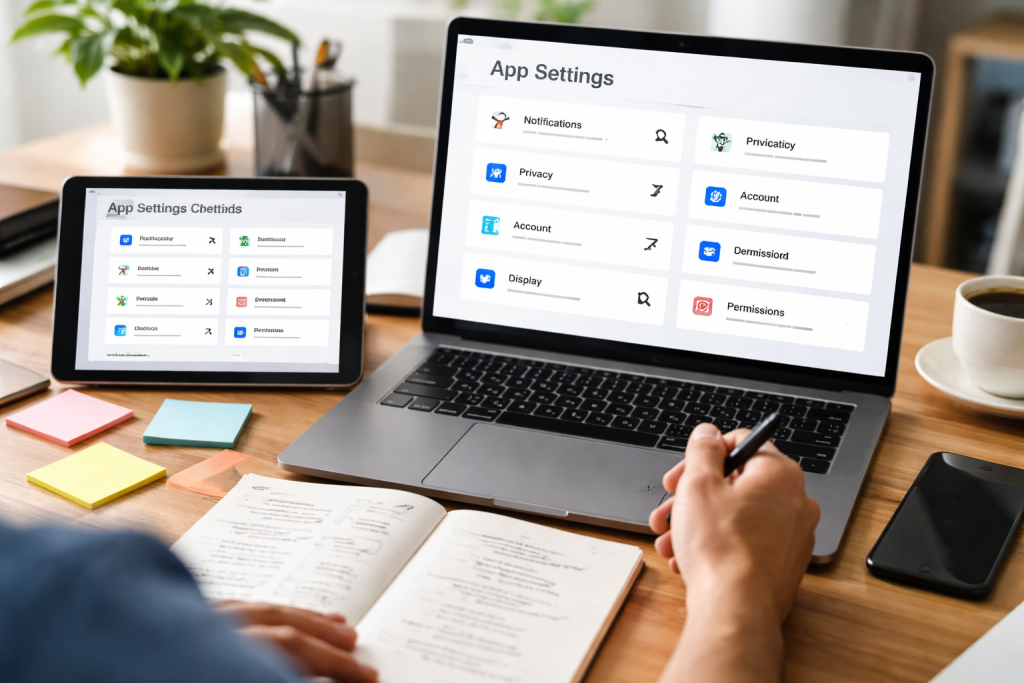
Default application settings, often referred to as the default app configuration, are the predetermined choices an operating system or device makes when a specific type of file or link is opened. Imagine them as the default settings in a brand-new toolbox, where everything is arranged and prepared for use. When you tap on a web link, for instance, your device knows which application to use to open it, based on its default browser setting. Similarly, when you receive an email, the default email client is launched. These settings are fundamental to how your device operates, streamlining common tasks and ensuring a consistent user experience. Without them, every time you interacted with a file type, you would be prompted to choose an application, which would quickly become cumbersome and inefficient.
Contents
- 0.1 What are default apps? default apps? default apps?
- 0.2 Why Default App Settings Matter
- 0.3 The Role of the Operating System
- 0.4 Changing Defaults on Android Devices
- 0.5 Changing Defaults on iOS Devices
- 0.6 Changing Defaults on Windows Devices
- 0.7 Changing Defaults on macOS Devices
- 0.8 Email Clients
- 0.9 Web Browsers
- 0.10 Calendar Applications
- 0.11 Photos and Image Viewers
- 0.12 Video Players
- 0.13 Music and Audio Players
- 0.14 Document Editors and Word Processors
- 0.15 Note-Taking Applications
- 0.16 File Management and Cloud Storage
- 0.17 Data Access by Default Applications
- 0.18 Security Vulnerabilities and Updates
- 0.19 Privacy Policies and Data Handling
- 0.20 Applications Not Opening as Default
- 0.21 Unexpected Prompts to Choose an Application
- 0.22 Incorrect Defaults After Updates
- 1 FAQs
- 1.1 1. What are default app settings, and why are they important?
- 1.2 2. How can I change default app settings on my device?
- 1.3 3. What are some common default app settings for email, web browser, and calendar apps?
- 1.4 4. How can I customize default app settings for productivity apps?
- 1.5 5. What should I consider regarding privacy and security when managing default app settings?
What are default apps? default apps? default apps?
Default applications are the programs that your operating system automatically selects to handle specific file types or actions. For example, on most mobile operating systems, a built-in application is designated as the default for handling text messages. When a new text message arrives, this default application is the one that opens to display it. This applies to a wide range of functions, from viewing images to playing music and navigating the web. The operating system acts as a kind of traffic controller for your digital life, directing each type of data to the application best equipped to manage it, according to the preset rules.
Why Default App Settings Matter
The importance of default app settings lies in their direct influence on your daily digital interactions. They dictate the immediate experience you have when performing common actions. A well-configured set of defaults can make your device feel responsive and efficient, like a well-oiled machine that runs smoothly. Conversely, mismatched or undesirable defaults can lead to frustration and wasted time. For example, if your preferred music player is not set as the default, you might have to manually select it every time you want to listen to a song. This constant interruption is a small friction point that, over time, can detract from the overall usability of your device. Furthermore, these settings form the bedrock of how your device integrates with external content and services, acting as the gateway to the vast digital world.
The Role of the Operating System
The operating system, whether it’s Windows, macOS, Android, or iOS, plays a pivotal role in managing default app settings. It maintains a registry or database that maps file types and protocols to specific applications. The OS consults this registry to identify the designated default application when you request an action. This central management ensures consistency and allows users to modify these associations when they desire. The operating system essentially curates the choices, but it also provides you with the keys to rearrange the furniture. It creates these default behaviors, allowing you to design your digital space.
The process for modifying default app settings varies depending on the device and operating system. While the underlying principle remains the same—associating file types or actions with specific applications—the navigation and interface differ significantly. Understanding these variations is crucial for users who operate multiple devices or switch between platforms. Imagine trying to navigate a new city without a map; changing defaults on a new device can feel similar if you don’t know the local landmarks.
Changing Defaults on Android Devices
On Android devices, users can modify default app settings through the device’s main settings menu. Typically, you navigate to “Apps,” then “Default apps,” or a similar path like “Apps & notifications,” followed by “Advanced” and then “Default apps.” Here, you will find categories for common functions such as the home app, phone app, SMS app, browser app, and more. Tapping on a category will present a list of installed applications that can perform that function, allowing you to select your preferred option. For specific file types, you might need to go into the individual app’s settings and clear its defaults, or sometimes the option to set it as default is presented when you first open a file of that type. This layered approach allows for both broad and granular control.
Setting Default Apps through App Info
Another method on Android involves accessing the “App info” screen for a specific application. You can usually get to this by long-pressing an app icon and selecting “App Info” or by finding the app in the device’s main settings list under “Apps.” Within the app info screen, there is often a section for “Set as default” or “Open by default.” Here, you can see if the app is currently set as a default for any actions and clear those defaults or set new ones. This direct approach is efficient when you have a particular app in mind that you want to promote to default status. It’s like finding the specific tool you need in your toolbox and designating it for a primary task.
Clearing Defaults for Specific File Types
Sometimes, a default setting might be incorrectly applied, or you might want to change how a specific type of file is opened. On Android, you can often achieve this by opening a file of the type in question. A prompt will appear asking you which application you want to use to open it. If you select an application and choose to make it the default, that association is made. To clear an existing default for a specific file type, you might need to navigate to “Settings” > “Apps” > the app that is currently set as the default > “Open by default” (or similar) and then tap “Clear defaults.” This action effectively resets the choice for that file type.
Changing Defaults on iOS Devices
iOS devices, known for their streamlined interface, handle default app settings somewhat differently. Initially, iOS was more restrictive, with fewer options for changing defaults. However, with recent updates, Apple has opened this up considerably. For web browsers and email clients, users can now go to the specific app’s settings within the iOS Settings app. For example, to change the default browser, you would go to Settings, scroll down to find your desired browser app (e.g., Chrome, Firefox), tap on it, and then select “Default Browser App” to make your selection. The same process applies to changing the default email client.
Default Apps for Other Functions on iOS
For other functionalities on iOS, such as calendar apps or messaging apps, Apple maintains a tighter grip on the defaults, particularly for core system functions. While you can install alternative calendar or messaging apps, the system-level defaults for these core services may remain fixed. However, the ability to change defaults for web browsers and email clients represents a significant step towards user customization. This approach highlights Apple’s philosophy of curated user experience, where certain foundational elements are kept consistent while allowing for personalization in other areas.
Changing Defaults on Windows Devices
Windows users have always had a robust degree of control over default app settings. In Windows 10 and Windows 11, this is managed through the “Settings” app. You can navigate to “Apps” and then “Default apps.” This section provides a comprehensive list of common app types, such as email, maps, music players, photo viewers, web browsers, and video players. players. Clicking on each category allows you to choose from a list of installed applications that are compatible with that function. For more granular control over specific file types or protocols, you can also scroll down to “Choose default apps by file type” or “Choose default apps by protocol.”
Setting Defaults by File Type and Protocol
The ability to set defaults by specific file types (e.g., .docx, .mp3, .jpg) or protocols (e.g., FTP, mailto) offers precise customization. This is particularly useful for users who work with specialized software. For instance, a graphic designer might want all .psd files to open in Photoshop by default, while a musician might prefer a particular audio editor for .wav files. This level of control ensures that your workflow is not interrupted by inappropriate application launches. It’s like having a valet for every single type of digital package you receive.
Changing Defaults on macOS Devices
macOS, like iOS, offers a straightforward way to manage default applications. For common file types, you can right-click (or Control-click) on a file, select “Get Info,” and then expand the “Open with:” section. From a dropdown menu, you can choose the application you want to use to open that file type. To ensure this choice applies to all similar files, you can click the “Change All…” button. This action sets the selected application as the default for all files with that specific extension.
Default Applications for Web Browsers and Email on macOS
Similar to other operating systems, web browsers and email clients are key areas where users frequently want to set their preferred defaults. On macOS, this is typically managed within the application itself or through the operating system’s general settings. For instance, many web browsers, when installed, will prompt you to set them as the default. Alternatively, you can go to “System Preferences” (or “System Settings” in newer macOS versions), find “General,” and look for the “Default web browser” option to make your selection. For email, the Mail application often holds the default status, but third-party clients can usually be designated as the default through their own settings.
Certain default app settings are particularly impactful on a daily basis. These include the applications that handle your email, web browsing, and calendar entries. Ensuring these are set to your preferred choices can significantly enhance your efficiency and overall digital experience. These are the cornerstones of your digital workflow, and getting them right sets a positive tone for everything else.
Email Clients
Your default email client is the application that launches when you click on an email address link (often represented by “mailto:”). If you primarily use a web-based email service like Gmail or Outlook.com, you might prefer it to open in your web browser rather than a desktop email application. Conversely, if you prefer to manage all your emails within a dedicated program like Microsoft Outlook, Thunderbird, or Apple Mail, you would set that as your default. The choice here often comes down to personal preference for organization, offline access, and integration with other services. It’s the digital postman that delivers your communications.
Web Browsers
The default web browser is the application that automatically opens when you click on a hyperlink in an email, a document, or another application. Popular choices include Google Chrome, Mozilla Firefox, Microsoft Edge, Apple Safari, and Brave. Users often select a browser based on its speed, privacy features, extension support, or familiarity. Changing your default browser is generally a simple process, and it ensures that all your web activity is channeled through your preferred online gateway. This is your main portal to the vast expanse of the internet.
Calendar Applications
Your default calendar application is used to create new calendar events or view your schedule. This could be a built-in application like Google Calendar, Apple Calendar, or Microsoft Outlook Calendar, or a third-party option. If you rely heavily on a specific calendar service for synchronization across devices or for its integration with other productivity tools, setting it as the default ensures all your scheduling activities are managed in one place. It’s the conductor of your time, orchestrating your appointments and deadlines.
Beyond essential communication and browsing tools, default app settings also play a crucial role in how you interact with your media files—photos, videos, and music—and how organized you keep them. Setting appropriate defaults for these categories can streamline access and playback, making your media library more accessible and enjoyable. These are the archives and entertainment hubs of your digital life.
Photos and Image Viewers
The default photo viewer is the application that opens when you click on an image file (e.g., .jpg, .png, or .gif). This could be a basic operating system viewer, a more advanced photo management application like Adobe Lightroom or Apple Photos, or a lightweight third-party option. For users who do a lot of photo editing or organization, setting a dedicated photo management app as the default can be a significant time-saver. It’s the frame through which you view your visual memories.
Video Players
.avi, or Similarly, the default video player is launched when you open a video file (e.g., .mp4, .avi, or .mov). Many operating systems come with a built-in player, but users often prefer more feature-rich alternatives like VLC Media Player, Plex, or PotPlayer. These alternative players might offer better codec support, streaming capabilities, or a more refined playback experience. Choosing the right default ensures that your video content is viewed with the best possible quality and convenience. This is the cinema screen of your digital world.
Music and Audio Players
When you click on an audio file (e.g., .mp3, .wav, or .flac), your default music or audio player opens. This could be the integrated player of your operating system, a dedicated music streaming app, or a powerful audio workstation. For audiophiles, setting a player that supports high-fidelity audio formats might be essential. For others, integration with a music streaming service like Spotify or Apple Music might be the priority. This application is the personal concert hall for your audio library.
Beyond media and basic functions, tailoring default app settings can have a profound impact on your productivity. By selecting the applications that best fit your workflow for tasks like note-taking, document editing, and file management, you can reduce friction and increase efficiency. These are the tools in your digital workshop, and choosing the right ones makes the workflow better.
Document Editors and Word Processors
.pdf, or When you open a document file (e.g., .docx, .pdf, .txt), the default application that launches is your primary document editor. While operating systems often include a basic text editor, many users prefer more advanced word processors like Microsoft Word, Google Docs, or LibreOffice Writer. For those who frequently work with PDFs, setting a dedicated PDF reader like Adobe Acrobat Reader or Foxit Reader as the default can ensure a consistent viewing and editing experience. This determines how you craft and consume written information.
Note-Taking Applications
Default settings don’t always directly apply to notes in the same way they do to file types. However, the principle of choosing your preferred tool remains. If you use a specific note-taking app for quick memos, to-do lists, or extensive research, you’ll want to ensure easy access to it. This might involve making it your default app for certain types of text snippets or simply ensuring it’s readily available through shortcuts or pinned to your taskbar. This is the digital notepad for your thoughts and ideas.
File Management and Cloud Storage
While file management is largely handled by the operating system’s file explorer (e.g., Windows File Explorer, macOS Finder), default settings can influence how you interact with cloud storage services. For instance, setting a particular cloud storage app (like Google Drive, Dropbox, or OneDrive) as the default for saving or opening files from the cloud can streamline your workflow. This determines how you navigate and organize your digital filing cabinets.
Understanding the implications of your default app settings extends beyond mere convenience; it touches upon the critical aspects of privacy and security. The applications you designate as defaults have access to your data and can influence how that data is handled, transmitted, and stored. Choosing applications from reputable developers and understanding their privacy policies is paramount. Every default you set is like opening a specific door to your digital home; you want to make sure you know who has the key and what they can see inside.
Data Access by Default Applications
When an application is set as the default for a particular function, it often gains a higher level of access to your system and data related to that function. For example, a default email client can read, write, and delete emails. A default browser can access your browsing history, cookies, and potentially your login credentials if not managed carefully. It is therefore crucial to select default applications that you trust and to be aware of the permissions they require. This extends to understanding what information each application is designed to collect and how it uses that data.
Security Vulnerabilities and Updates
The security of your default apps is directly tied to the security of your overall system. If a default application has a known vulnerability and is not updated promptly, it can become an entry point for malicious actors. Reputable developers regularly release security updates to patch these vulnerabilities. Choosing open-source applications or those with a strong track record of security can be beneficial. Staying informed about software updates and ensuring your defaults are always current is a key aspect of digital hygiene. It’s like ensuring the locks on your doors are always in good working order and that you have the latest keys.
Privacy Policies and Data Handling
Before setting an application as your default, it is advisable to review its privacy policy. This document outlines how the application collects, uses, stores, and shares your personal data. Some applications may share anonymized data with third parties for marketing or analytics purposes, while others offer more stringent privacy protections. Being informed about these policies allows you to make educated choices about which applications you grant default access. This is akin to understanding the terms and conditions before entering any agreement.
Despite careful configuration, users can sometimes encounter issues with their default app settings. These problems can range from unexpected application launches to a refusal of the system to acknowledge a chosen default. Fortunately, most of these issues are resolvable with straightforward troubleshooting steps.
Applications Not Opening as Default
reset One of the most common problems is when an application that you’ve set as the default does not launch when expected. This can sometimes happen after a system update or the installation of new software. The first step is usually to reset the default. Navigate to the default app settings in your operating system and re-select your preferred application for that function. If the issue persists, clearing the existing default settings for that app category or file type and then re-establishing them can resolve the problem. It’s like troubleshooting a faulty circuit breaker by flipping the switch off and then back on again.
Unexpected Prompts to Choose an Application
Occasionally, you might find yourself repeatedly being prompted to choose an application, even if you’ve already set a default. This usually indicates that the system’s association for that file type or protocol has become corrupted or is being overridden. Clearing the default settings for that specific file type or protocol, as described in the device-specific sections, is often the solution. For more persistent issues, a system restart can sometimes refresh these associations. This is like a digital stutter, and a reset can help it find its rhythm again.
Incorrect Defaults After Updates
Software updates, whether for the operating system or individual applications, can sometimes reset or alter default app settings. This is a common occurrence and usually requires you to re-apply your preferred defaults. Developers sometimes change how applications register themselves with the operating system during an update, which can lead to these unintended changes. Being aware of this possibility after significant updates can save you some frustration. It’s like a gardener having to restake plants after a strong wind.
FAQs
1. What are default app settings, and why are they important?
Default app settings are the preset preferences for which app will open when you perform a certain action, such as clicking on a link or opening a file. They are important because they determine the user experience and efficiency of using different apps on a device.
2. How can I change default app settings on my device?
The process for changing default app settings varies depending on the device and operating system. Generally, you can go to the settings or preferences menu, find the app settings section, and then select the default apps option to make changes.
3. What are some common default app settings for email, web browser, and calendar apps?
Common default app settings include choosing which email app will open when you click on an email address, which web browser will open when you click on a link, and which calendar app will open when you click on a date or event.
4. How can I customize default app settings for productivity apps?
To customize default app settings for productivity apps, you can usually go to the settings or preferences menu within the app itself and look for options related to default actions, file types, or integrations with other apps.
5. What should I consider regarding privacy and security when managing default app settings?
When managing default app settings, it’s important to consider the permissions and access that each app has, as well as the potential for data sharing between apps. Be mindful of granting access to sensitive information and regularly review and update default app settings for privacy and security purposes.

Smart Tech Manual is a technology-focused platform dedicated to providing simple, clear, and beginner-friendly guides for everyday users.