
Mastering Multitasking: How to Effectively Manage Background Apps on Your Devices
Managing background applications is a key skill for optimizing device performance and user experience. This article will explain how to handle these behind-the-scenes processes effectively to improve how you use your devices.
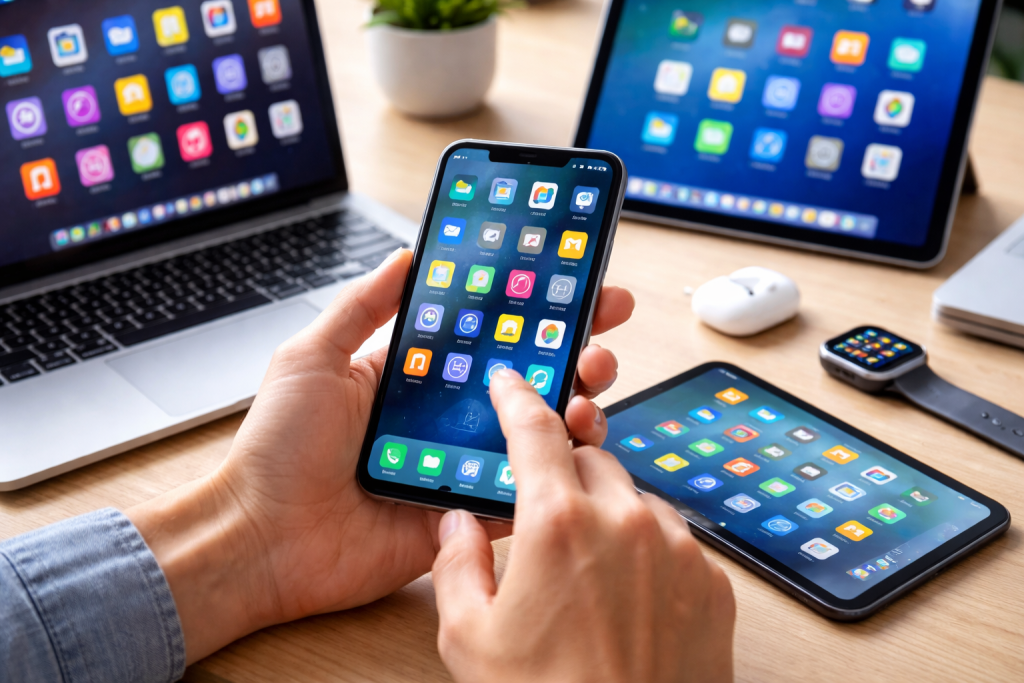
Background applications run when you aren’t using them. Think of them as the silent workers in a factory. They perform tasks like checking for new emails, updating social media feeds, downloading files, or syncing data to cloud services. While essential for many conveniences, they consume device resources, primarily processing power (CPU) and memory (RAM), and they can also draw upon battery power. The more demanding background apps you have, the more your device is strained. These activities can lead to a noticeable slowdown in the performance of the apps you are actively using. Your device may become sluggish, take longer to open applications, or respond less quickly to your input. This scenario is like a factory trying to run too many machines at once; the overall output suffers.
Contents
- 0.1 How Background Apps Consume Resources
- 0.2 Identifying Resource-Intensive Background Apps
- 0.3 Selective App Permissions
- 0.4 Utilizing Device-Specific Settings
- 0.5 Understanding App Behavior
- 0.6 Preventing Performance Degradation
- 0.7 Optimizing Battery Life
- 0.8 Ensuring System Stability
- 0.9 Strategic Background App Usage
- 0.10 Scheduled Refreshing and Updates
- 0.11 Understanding the Trade-offs
- 0.12 The “Low Power Mode” Advantage
- 0.13 Operating System Settings
- 0.14 Task Managers and Activity Monitors
- 0.15 App-Specific Settings
- 0.16 Third-Party Applications (Use with Caution)
- 0.17 Notification Management
- 0.18 Do Not Disturb Modes
- 0.19 Contextual Awareness
- 0.20 Scheduled “Distraction Times”
- 0.21 Efficient Task Switching
- 0.22 Utilizing Split-Screen and Windowing Features
- 0.23 Keyboard Shortcuts and Gestures
- 0.24 Batching Similar Tasks
- 0.25 Regular Review and Optimization
- 1 FAQs
- 1.1 apps, 1. What are background apps, and how do they impact device performance?
- 1.2 2. What are some tips for effectively managing and prioritizing background apps?
- 1.3 3. Why is resource management important for multitasking, and how does it impact efficiency and battery life?
- 1.4 4. What tools and features are available for controlling background apps on devices?
- 1.5 5. What are some strategies for minimizing distractions from background apps and maximizing productivity with multitasking techniques?
How Background Apps Consume Resources
Every running application, whether in the foreground or background, requires a portion of your device’s available RAM. RAM is the short-term memory your device uses to store data and instructions for active processes. When RAM is full, your device has to swap data between RAM and slower storage, which significantly impacts speed. Background apps can also periodically wake up your device’s processor to perform tasks, even if you’re not looking at them. This constant activity, even if small for each individual app, can add up. This also directly affects battery life. The processor uses energy, and any activity, even minimal background activity, contributes to battery drain. For devices with cellular connectivity, background apps that refresh data can also consume mobile data.
Identifying Resource-Intensive Background Apps
Many operating systems provide tools to help you identify which applications are consuming the most resources. On mobile devices, the battery settings often display the apps that have consumed the most power. On desktop operating systems, Task Manager (Windows) or Activity Monitor (macOS) provides detailed information on CPU, memory, and disk usage by individual applications, including those running in the background. Observing these reports can reveal unexpected resource hogs. For instance, a seemingly simple app might be repeatedly downloading large updates in the background, causing performance issues you weren’t aware of.
Effectively managing background apps involves a strategic approach to allow essential services to function while preventing unnecessary resource drains. This is akin to organizing a busy workshop; you need to know which tools are essential for ongoing projects and which can be put away to clear space and reduce clutter.
Selective App Permissions
activity, while modern operating systems allow you to control which apps can run in the background and under what conditions. You can often grant permissions for specific apps to have unrestricted background activity while limiting others. This limitation is a powerful tool for tailoring your device’s behavior to your needs. For example, a navigation app might need constant background access to track your location, while a game you only play occasionally does not. Carefully reviewing and adjusting these permissions is a proactive step in resource management.
Utilizing Device-Specific Settings
Both Android and iOS (and Windows and macOS) have built-in features designed to manage background activity. On Android, this includes options for “Background restrictions” for individual apps. You can turn off “Background App Refresh” on iOS for individual apps or the entire system. Desktop operating systems offer settings to control startup applications, preventing non-essential programs from launching automatically. Please take a moment to become acquainted with these settings on your specific device. They are your primary tools for this kind of control.
Understanding App Behavior
Some apps are designed to be more “chatty” in the background than others. Social media apps, for instance, often refresh feeds frequently. News aggregators may download new articles. Productivity apps might sync documents. Understanding the typical function of an app can help you anticipate its background behavior and decide if it warrants unrestricted background access. If an app performs a function that primarily benefits you when you are actively using it, consider limiting its background activity.
Multitasking, the act of performing multiple tasks seemingly simultaneously on a device, relies heavily on efficient resource management. When multiple applications are running, either actively or in the background, they vie for limited processing power, memory, and battery. Smooth multitasking relies on effective resource management as its foundation. Like a skilled conductor leading an orchestra, you need to ensure each instrument plays its part without overpowering the others, creating a harmonious performance.
Preventing Performance Degradation
When background apps consume too many resources, the apps you are actively using will suffer. This can manifest as lag, stuttering, or even application crashes. Trying to paint a detailed picture while someone is constantly bumping your arm would compromise the precision and quality of your work. By managing background apps, you free up resources, ensuring your active applications have the processing power and memory they need to function optimally, leading to a more fluid and responsive experience.
Optimizing Battery Life
As mentioned, background activity is a significant contributor to battery drain. Apps that continuously refresh data, connect to networks, or perform computations in the background consume energy even when the screen is off. Proactive management of these apps directly translates to a longer battery life for your device. This is like managing your personal energy throughout the day; you conserve it for when it’s most needed, avoiding unnecessary expenditure.
Ensuring System Stability
An overloaded system with many demanding background processes can also become unstable. This can lead to unexpected shutdowns, freezes, or errors. By keeping background resource consumption in check, you reduce the strain on the operating system, contributing to a more stable and reliable computing environment. A stable system is one that consistently performs as expected, without surprising interruptions.
The quest for efficiency through multitasking often comes into conflict with the desire for extended battery life. This requires a careful equilibrium, akin to determining the ideal speed for a car. Too fast, and you’ll burn through fuel quickly; too slow, and the journey takes an unnecessary amount of time. The goal is to find the optimal middle ground that allows for productive use without prematurely draining the battery.
Strategic Background App Usage
Not all background activity is created equal. Some background tasks are critical for immediate alerts or data synchronization. Others are less urgent. A smart approach involves identifying which background tasks are genuinely beneficial for an “always on” experience and which can be deferred or limited. For example, allowing email and messaging apps to refresh in the background is often desirable, while allowing a game to constantly download updates might not be.
Scheduled Refreshing and Updates
Many applications offer settings to control how frequently they refresh data in the background or download updates. Instead of allowing continuous background activity, consider setting these apps to refresh at less frequent intervals or scheduling updates for times when your device is connected to a charger or Wi-Fi. This is like setting a recurring reminder to check your mail instead of standing by the mailbox all day.
Understanding the Trade-offs
It’s important to acknowledge that there is a direct trade-off between having a wide range of background features readily available and maximizing battery life. If you require immediate access to multiple constantly updating services, you will likely experience shorter battery life. Conversely, if battery longevity is your absolute priority, you will need to be more restrictive with background app permissions and activity. Understanding this fundamental relationship helps you make informed decisions about your device’s configuration.
The “Low Power Mode” Advantage
Many devices offer a “Low Power Mode” or “Battery Saver” option. These modes typically reduce background activity, limit visually demanding features, and sometimes even throttle processor speed to extend battery life significantly. While this mode might slightly impact the responsiveness of certain background tasks, it is an effective tool for prolonging usage when battery power is a concern. It’s a temporary measure that prioritizes longevity over immediate feature availability.
Modern operating systems provide a growing array of built-in tools and features to help users manage background applications. These features are designed to be user-friendly, allowing for granular control without requiring extensive technical knowledge.
Operating System Settings
Both iOS and Android offer comprehensive settings menus where you can manage app permissions and background activity. On iOS, “Background App Refresh” allows you to disable this feature entirely or on an app-by-app basis. On Android, you can find specific battery optimization settings and background restriction options within each app’s individual settings. These are the primary interfaces for controlling how your applications behave when not in active use.
Task Managers and Activity Monitors
Desktop operating systems, such as Windows and macOS, feature built-in utilities like Task Manager and Activity Monitor, respectively. These tools provide a detailed overview of all running processes, including background applications, and display their resource consumption. You can often use these tools to manually end non-responsive or excessively resource-hungry background processes. This feature is like having a central control panel for all the services running on your computer.
App-Specific Settings
Beyond the operating system’s controls, many individual applications include their own settings that affect background behavior. For example, a social media app might have options for how often it fetches new content, or a cloud storage app might allow you to control background sync frequency. Exploring the settings within each app you use can reveal further opportunities for customization.
Third-Party Applications (Use with Caution)
While built-in tools are generally sufficient, there are third-party applications that claim to optimize background app management. These often offer features like automated task killing or aggressive resource monitoring. However, it’s important to exercise caution when using such applications. Some may not be as effective as advertised, and poorly designed ones can sometimes cause more problems than they solve, potentially interfering with essential system functions or even introducing security risks. Always research reviews and developer reputations before installing third-party system management tools.
Beyond resource consumption, background apps can also be a significant source of distraction, pulling your attention away from the task at hand. Managing these distractions is vital to maintaining focus and productivity.
Notification Management
One of the most common ways background apps distract users is through notifications. Pop-up alerts, sounds, and vibrations can interrupt your workflow. Most operating systems allow you to customize notification settings for individual apps or disable them altogether. The key is to be selective. Enable notifications only for applications that require your immediate attention, and consider disabling them for less critical services. This is like turning down the volume on background noise so you can concentrate on your primary conversation.
Do Not Disturb Modes
Both mobile and desktop operating systems offer “Do Not Disturb” modes. These functions silence most notifications and alerts, allowing you to focus without interruption. You can often customize these modes to allow calls or messages from specific contacts to come through, ensuring you don’t miss important communications. This feature is a temporary shield against the barrage of digital interruptions.
Contextual Awareness
Develop an awareness of which apps are likely to generate notifications or demand attention at specific times. For instance, during designated work periods, you might opt to disable notifications from social media or entertainment apps. For tasks requiring deep concentration, consider temporarily closing or disabling background activity for all but the most essential applications. This is about understanding your workflow and tailoring device behavior accordingly.
Scheduled “Distraction Times”
Paradoxically, setting aside specific times to check less critical notifications or background updates can improve focus. Instead of being constantly interrupted throughout the day, you can dedicate short periods to address these items. This allows for a more controlled and less disruptive engagement with these applications. It’s like scheduling check-ins at designated post offices rather than leaving your desk every time a letter arrives.
Effective multitasking goes beyond simply having many apps open; it involves strategically using your device to accomplish more in less time. This requires a mindful approach to how you interact with your technology.
Efficient Task Switching
The ability to quickly and smoothly switch between applications is fundamental to multitasking. Learn the shortcuts and gestures your device offers for task switching. For instance, on smartphones, swiping between recent apps is a key skill. On desktops, Alt+Tab (Windows) or Mission Control (macOS) allows for rapid switching. By reducing the friction of task switching, users can spend less time navigating menus and more time working.
Utilizing Split-Screen and Windowing Features
Another modern operating system widely supports split-screen modes or windowed multitasking. This allows you to view and interact with two or more applications simultaneously. For example, you might be referencing a document in one window while writing an email in another or watching a tutorial on one half of the screen while practicing the technique on the other. This visual arrangement can significantly boost efficiency for tasks that involve comparing information or performing related actions.
Keyboard Shortcuts and Gestures
Mastering keyboard shortcuts and trackpad gestures can dramatically speed up your interaction with your device. These provide direct commands for common actions, bypassing the need to navigate menus with a mouse or tap on small on-screen buttons. Learning even a few of the most frequently used shortcuts can save you considerable time over the course of a day.
Batching Similar Tasks
When multitasking, it can be more efficient to group similar tasks together. For example, instead of responding to individual emails as they arrive, set aside a specific time to process your inbox. Similarly, if you need to make several phone calls, make them in one block rather than sporadically throughout the day. This batching approach minimizes context switching, allowing your brain to stay focused on a particular type of activity.
Regular Review and Optimization
Finally, periodically review your multitasking habits and device configuration. Are there background apps that are consistently causing issues? Could you save time by using shortcuts? Making small, regular adjustments can lead to significant improvements in both efficiency and overall device performance over time. This procedure is an ongoing process of refinement, ensuring your technology continues to serve your needs effectively.
FAQs
apps, 1. What are background apps, and how do they impact device performance?
Applications known as background apps continue to run and consume resources even when they are not actively in use. These apps can impact device performance by using up memory, CPU, and battery, which can slow down the device and reduce battery life.
2. What are some tips for effectively managing and prioritizing background apps?
To effectively manage background apps, users can prioritize essential apps and close unnecessary ones, use built-in tools to monitor and control app activity, and limit the number of apps running in the background to conserve resources and improve device performance.
3. Why is resource management important for multitasking, and how does it impact efficiency and battery life?
Resource management is important for multitasking because it ensures that the device has enough memory, CPU, and battery power to handle multiple tasks simultaneously. Efficient resource management can improve multitasking performance and extend battery life by preventing unnecessary drain from background apps.
4. What tools and features are available for controlling background apps on devices?
Devices often come with built-in tools and features for controlling background apps, such as app management settings, task managers, and battery optimization options. These tools allow users to monitor, prioritize, and close background apps to optimize device performance.
5. What are some strategies for minimizing distractions from background apps and maximizing productivity with multitasking techniques?
Strategies for minimizing distractions from background apps include setting app notifications and permissions, using do-not-disturb modes, and organizing app layouts for easy access to essential apps. By implementing multitasking techniques such as split-screen and app pairings, users can maximize productivity while minimizing distractions from background apps.

Smart Tech Manual is a technology-focused platform dedicated to providing simple, clear, and beginner-friendly guides for everyday users.