
Maximize Your Internet Speed: The Ultimate Wi-Fi Extender Setup Tutorial
A Wi-Fi extender, also known as a Wi-Fi repeater or booster, is a device that expands the coverage of an existing Wi-Fi network. It works by capturing the signal from your primary router, amplifying it, and then rebroadcasting it. This process creates an additional access point for your devices, extending the network’s reach to areas with weak or no signal.
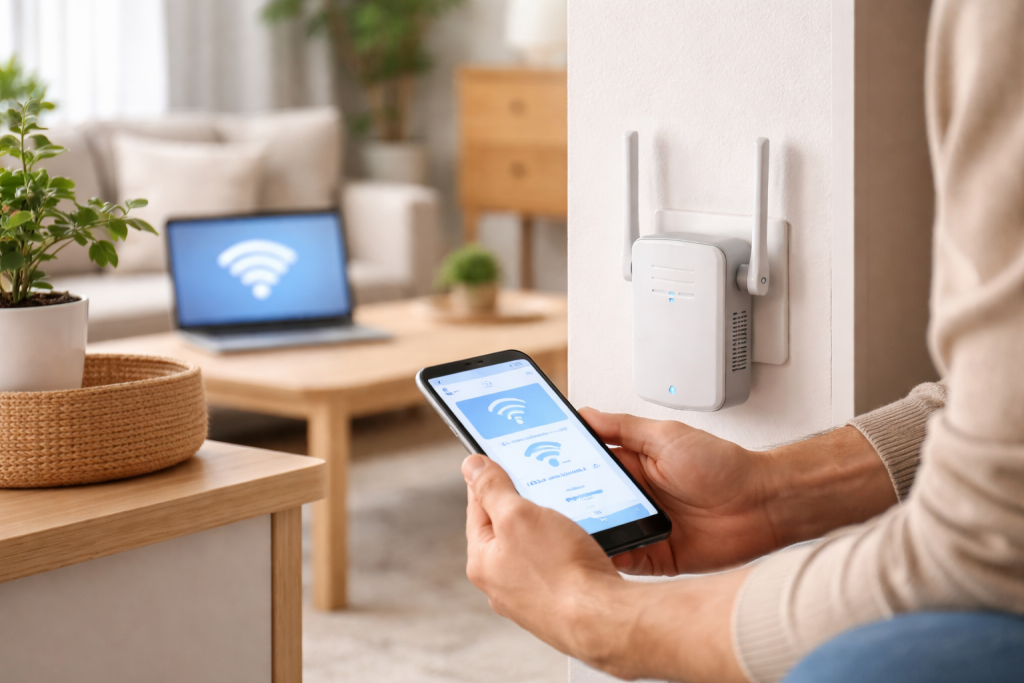
Think of your main router as a lighthouse. Its light, the Wi-Fi signal, travels a certain distance. A Wi-Fi extender is like a second, smaller lighthouse, positioned further out, catching the light from the main one and then shining it even further. This allows your devices to connect reliably in corners of your home where the primary signal struggles to reach.
Wi-Fi extenders are particularly useful in larger homes, multi-story buildings, or spaces with physical obstacles like thick walls, which can degrade Wi-Fi signals. They offer a cost-effective solution compared to running Ethernet cables or investing in a mesh Wi-Fi system, though mesh systems generally provide a more seamless experience.
Contents
- 0.1 Types of Wi-Fi Extenders
- 0.2 How Wi-Fi Extenders Work
- 0.3 Wi-Fi Standards and Compatibility
- 0.4 Single-Band vs. Dual-Band Extenders
- 0.5 Ethernet Ports
- 0.6 Mesh Wi-Fi vs. Extenders
- 0.7 Initial Placement Considerations
- 0.8 Setup Methods
- 0.9 Configuring for Optimal Performance
- 0.10 The Halfway Point Principle
- 0.11 Visualizing Signal Strength
- 0.12 Avoiding Interference Sources
- 0.13 No Connection or Intermittent Connectivity
- 0.14 Slow Speeds Even with Full Signal
- 0.15 Extender Disconnecting Frequently
- 0.16 Access Point Mode
- 0.17 High-Power Antennas
- 0.18 MU-MIMO Technology
- 0.19 Wi-Fi 6 (802.11ax) and Beyond
- 0.20 WPA3 Security
- 0.21 Considering Mesh Wi-Fi as an Upgrade Path
- 1 FAQs
- 1.1 What is a Wi-Fi extender, and how does it work?
- 1.2 How do I choose the right Wi-Fi extender for my home?
- 1.3 What are some tips for optimizing the placement of my Wi-Fi extender?
- 1.4 What are some common issues with Wi-Fi extenders, and how can I troubleshoot them?
- 1.5 What are some advanced features of Wi-Fi extenders that can enhance internet speed?
Types of Wi-Fi Extenders
There are two primary types of Wi-Fi extenders:
- Wireless Extenders: These connect to your existing Wi-Fi network wirelessly and then rebroadcast the signal. They are simple to set up and rebroadcast, as they only require a power outlet. However, they can sometimes face signal degradation if placed too far from the main router or if there are many interfering devices.
- Powerline Extenders: These utilize your home’s electrical wiring to transmit network data. One adapter plugs into a power outlet near your router and connects via an Ethernet cable. Another adapter plugs into an outlet in the area requiring extended coverage. The signal then travels through the electrical grid. The quality of your home’s electrical wiring limits the effectiveness of powerline extenders in overcoming physical barriers.
How Wi-Fi Extenders Work
When a Wi-Fi extender receives a signal from your router, it does not create an entirely new network. Instead, it re-transmits the existing network’s SSID (name) and password, effectively making it appear as part of the same network. Your devices then connect to the strongest available signal, whether from the router or the extender. This process, while extending coverage, can introduce a slight increase in latency due to the signal bouncing between devices.
Selecting the appropriate Wi-Fi extender depends on your specific needs, home layout, and existing network infrastructure. Consider the following factors:
Wi-Fi Standards and Compatibility
Ensure the extender supports the same or a newer Wi-Fi standard as your current router. Wi-Fi standards evolved, offering increased speeds and efficiency. Common standards include 802.11n (Wi-Fi 4), 802.11ac (Wi-Fi 5), and 802.11ax (Wi-Fi 6). While an extender with an older standard will work, it will bottleneck your network’s potential if your router is newer. For optimal performance, match the extender’s standard to your router’s or choose a newer standard for future-proofing.
Single-Band vs. Dual-Band Extenders
Wi-Fi operates on different frequency bands: 2.4 GHz and 5 GHz.
- 2.4 GHz band: Offers wider coverage and better penetration through obstacles but has lower speeds and is more susceptible to interference from other devices like microwaves and cordless phones.
- 5 GHz band: Provides higher speeds and less interference but has a shorter range and struggles with obstacles.
A single-band extender typically only uses the 2.4 GHz band. A dual-band extender supports both 2.4 GHz and 5 GHz bands simultaneously. This allows devices to connect to the optimal band based on their location and requirements. For most modern homes, a dual-band extender is preferable, as it offers greater flexibility and better overall performance.
Ethernet Ports
Some extenders include Ethernet ports. These are useful for connecting wired devices like smart TVs, gaming consoles, or desktop computers that require a stable, high-speed connection in an area far from the main router. This essentially turns the extender into a wired access point, bypassing the wireless bottleneck for those specific devices.
Mesh Wi-Fi vs. Extenders
While extenders are a viable solution, consider a mesh Wi-Fi system if you have a large home or require a uniform, seamless network experience. A mesh system uses multiple nodes that communicate with each other to create a single, unified network. This provides better roaming capabilities as your devices seamlessly switch between nodes without interruption, unlike extenders, which create a separate extended network with a slightly different SSID (though many modern extenders can use the same SSID).
Proper setup is crucial for your Wi-Fi extender to perform effectively. Rushing this step can lead to suboptimal performance.
Initial Placement Considerations
Unlike a main router, an extender should not be placed in the dead zone. Instead, position it strategically where it can still receive a strong, stable signal from your main router while also being close enough to the areas you want to cover. Think of it as a relay runner. The runner needs to receive the baton in excellent form to be able to run effectively to the next point.
Start by placing the extender roughly halfway between your router and the area with weak Wi-Fi. Avoid placing it near large metal objects, thick concrete walls, or appliances that emit electromagnetic interference (like microwaves).
Setup Methods
Most Wi-Fi extenders offer two primary setup methods:
- WPS (Wi-Fi Protected Setup) Button: This is the simplest method. Press the WPS button on your router, then, within two minutes, press the WPS button on your extender. The devices should then connect automatically. This method is quick, but some experts advise against WPS for security reasons, as it has known vulnerabilities.
- Web Browser Setup: This method provides more control and is generally more secure. Connect your computer to the extender’s temporary Wi-Fi network (usually indicated on the extender or its packaging). Go to the IP address of the extender (which can also be found on the device or in the manual) in a web browser. Follow the on-screen instructions to connect the extender to your main Wi-Fi network and set up its network name (SSID) and password.
Configuring for Optimal Performance
After the initial connection, you might need to adjust some settings for better performance:
- Firmware Updates: Always check for and install the latest firmware updates for your extender. Manufacturers often release updates to improve performance, add features, and patch security vulnerabilities.
- SSID Configuration: Modern extenders allow you to use the same SSID as your main router. This creates a more seamless experience, as your devices will automatically connect to the strongest signal without requiring manual switching between networks.
- Band Steering: If your extender supports band steering, enable it. This feature intelligently directs devices to the optimal Wi-Fi band (2.4 GHz or 5 GHz) based on their capabilities and signal strength, improving overall network efficiency.
Optimal placement is the single most important factor for an extender’s effectiveness.
The Halfway Point Principle
As mentioned before, the “halfway point” is a favorable starting position. If the extender is too close to the router, it only extends the excellent signal slightly. If it’s too far, it receives a weak signal itself, making the extended signal equally weak. Imagine trying to amplify a faint whisper; the result will still be hard to understand. The extender needs a clear, strong signal to rebroadcast a powerful one.
Visualizing Signal Strength
Many extenders have indicator lights that show signal strength from the main router. Use these lights as a guide. Move the extender around to various locations and observe the lights. Aim for a location where the indicator shows a strong or good signal. Some extenders even have companion apps that provide a more detailed graphical representation of signal strength.
Avoiding Interference Sources
Common sources of interference that can degrade Wi-Fi signals include:
- Large metal objects: Refrigerators, filing cabinets, and even large mirrors can reflect and absorb Wi-Fi signals.
- Thick concrete or brick walls: These materials significantly attenuate Wi-Fi signals.
- Other electronics: Microwaves, cordless phones, baby monitors, and even older fluorescent lights can emit electromagnetic interference on the 2.4 GHz band.
- Neighboring Wi-Fi networks: In dense urban areas, many overlapping Wi-Fi networks on the same channels can cause congestion and slow speeds.
Experiment with different heights and positions. Sometimes raising the extender slightly higher or moving it away from a heavy appliance can make a notable difference.
Even with careful setup, you might encounter issues. Here’s how to address common problems:
No Connection or Intermittent Connectivity
- Check power: Ensure the extender is powered on and its indicator lights are showing activity.
- Relocate the extender: If the signal indicator shows a weak signal, move the extender closer to your main router.
- Restart devices: Sometimes simply restarting your router, extender, and connected devices can resolve temporary glitches.
- Verify network password: Double-check that you entered the correct Wi-Fi password for your main network during setup.
- Firmware update: Outdated firmware can cause connectivity issues. Always keep it updated.
Slow Speeds Even with Full Signal
- Band congestion: If you’re on the 2.4 GHz band, try switching to the 5 GHz band if your extender and devices support it. The 2.4 GHz band is often crowded.
- Extender placement: If the extender is too far from the router and receiving a weak signal, it will rebroadcast a weak signal, leading to slow speeds. Reposition it.
- Router overload: If your main router is already struggling under a heavy load from many devices, the extender will only amplify that struggle. Consider upgrading your main router or reducing simultaneous high-bandwidth activities.
- Interference: Review potential interference sources in the extender’s vicinity.
- Half-duplex operation: Most extenders operate in half-duplex mode, meaning they can either receive or transmit at a given time, not both simultaneously. This inherent characteristic can reduce throughput by up to 50%. A mesh system mitigates this by having dedicated backhaul channels.
Extender Disconnecting Frequently
- Signal stability: The signal from your main router to the extender might be unstable. Try moving the extender to a location with a more consistent signal.
- Overheating: Ensure the extender has adequate ventilation and is not placed in an enclosed space that could lead to overheating.
- Power fluctuations: Unstable power supply can cause an extender to disconnect. Try plugging it into a different outlet or a surge protector.
- Interference: Intense interference can disrupt the connection. Identify and mitigate sources of interference.
Beyond basic functionality, some extenders offer features that can further optimize your network.
Access Point Mode
Many extenders can operate in “Access Point” mode. In this mode, you connect the extender to your main router via an Ethernet cable. The extender then creates a new Wi-Fi network. This bypasses the typical wireless repeater limitations, as the extender receives a full-speed wired connection, providing faster and more reliable Wi-Fi coverage in the extended area. This is ideal when you can run an Ethernet cable to the desired location.
High-Power Antennas
Some extenders come with higher-gain or adjustable antennas. These antennas can help focus the Wi-Fi signal in specific directions, improving range and penetration. Experimenting with antenna orientation can yield noticeable improvements in coverage.
MU-MIMO Technology
Multi-User, Multiple-Input, Multiple-Output (MU-MIMO) allows the router (or extender) to communicate with multiple devices simultaneously, rather than sequentially. This is like a chef serving multiple diners at once instead of one by one. If both your router and extender support MU-MIMO, and your devices are compatible, it can improve efficiency and speed, particularly in environments with many connected devices.
Technology evolves quickly. Keeping your network hardware updated can ensure it meets current and future demands.
Wi-Fi 6 (802.11ax) and Beyond
If your main router supports Wi-Fi 6 (802.11ax), consider an extender that also supports this standard. Wi-Fi 6 offers significant improvements in speed, capacity, and efficiency, especially in congested network environments. Key benefits include:
- OFDMA (Orthogonal Frequency-Division Multiple Access): Allows multiple devices to share a single channel simultaneously, improving efficiency.
- Target Wake Time (TWT): Helps conserve battery life for connected devices by intelligently scheduling communication times.
- 1024-QAM: Enhances data encoding, leading to higher throughput.
Upgrading to a Wi-Fi 6 extender when you already have a Wi-Fi 6 router ensures you utilize the full potential of your network.
WPA3 Security
Network security is paramount. WPA3 is the latest standard for Wi-Fi security, offering stronger encryption and improved protection against brute-force attacks compared to its predecessor, WPA2. When purchasing new networking equipment, including extenders, prioritize devices that support WPA3. This makes your extended network more resilient to unauthorized access.
Considering Mesh Wi-Fi as an Upgrade Path
For significant improvements in coverage, speed, and management, transitioning from traditional extenders to a mesh Wi-Fi system might be your best long-term strategy. While more expensive upfront, mesh systems provide a unified network with seamless roaming, dedicated backhaul for communication between nodes, and often centralized management through a user-friendly app. This eliminates the “extended network” feeling and offers a more robust solution for large or complex home environments.
By understanding the principles of Wi-Fi extenders and carefully considering your options, you can effectively enhance your home internet experience.
FAQs
What is a Wi-Fi extender, and how does it work?
A Wi-Fi extender, also known as a wireless repeater or range extender, is a device that amplifies and rebroadcasts the existing Wi-Fi signal from a router to extend its coverage to areas with weak or no signal. It works by receiving the existing Wi-Fi signal, amplifying it, and then transmitting the boosted signal to areas where the original signal is weak.
How do I choose the right Wi-Fi extender for my home?
When choosing a Wi-Fi extender, consider factors such as the size of your home, the layout of your space, the number of devices connected to the network, and the internet speed provided by your ISP. Look for a Wi-Fi extender that supports the same Wi-Fi standard as your router, has dual-band capabilities, and offers features such as beamforming and MU-MIMO for improved performance.
What are some tips for optimizing the placement of my Wi-Fi extender?
To maximize the performance of your Wi-Fi extender, place it in a location where it can still receive a strong Wi-Fi signal from the router but also effectively extend the signal to the areas where coverage is needed. Avoid placing the extender too far from the router or in areas with interference from other electronic devices. Experiment with different placements to find the optimal location for your Wi-Fi extender.
What are some common issues with Wi-Fi extenders, and how can I troubleshoot them?
Common issues with Wi-Fi extenders include slow or inconsistent connection, difficulty connecting to the extender, and dropped signals. To troubleshoot these issues, try relocating the extender to a different location, updating its firmware, ensuring it’s using the latest Wi-Fi standard, and minimizing interference from other devices. You can also consider using a Wi-Fi analyzer app to identify potential sources of interference.
What are some advanced features of Wi-Fi extenders that can enhance internet speed?
Advanced features of Wi-Fi extenders that can enhance internet speed include beamforming, which focuses the Wi-Fi signal directly on connected devices for improved performance, and MU-MIMO (Multi-User, Multiple-Input, Multiple-Output) technology, which allows the extender to communicate with multiple devices simultaneously, reducing latency and improving overall network efficiency. Additionally, some Wi-Fi extenders offer mesh networking capabilities for seamless coverage throughout the home.

Smart Tech Manual is a technology-focused platform dedicated to providing simple, clear, and beginner-friendly guides for everyday users.