
Mastering Wi-Fi: A Beginner’s Guide to Setting Up Your Router Like a Pro
Wi-Fi, short for Wireless Fidelity, connects devices to a network without cables. It uses radio waves to transmit data. This guide helps you understand Wi-Fi, set up a router, and troubleshoot common issues.
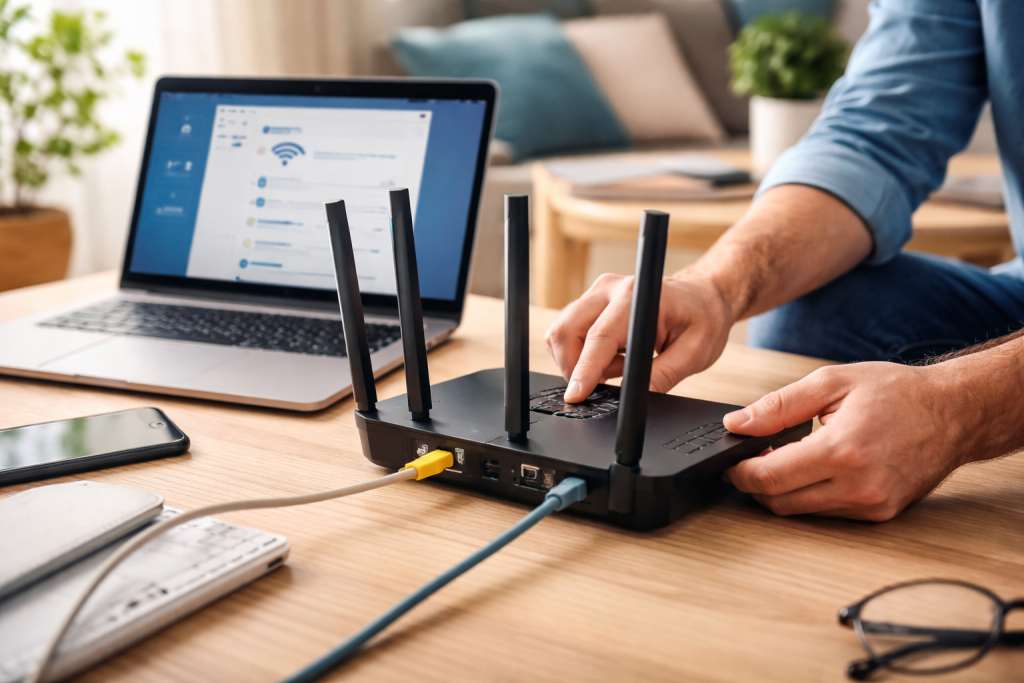
Wi-Fi is a technology that allows devices like computers, smartphones, and tablets to connect to the internet or to each other. This connection happens wirelessly.
Contents
- 0.1 How Wi-Fi Works
- 0.2 What is a router?
- 0.3 Router Specifications
- 0.4 Assessing Your Needs
- 0.5 Physical Placement
- 0.6 Initial Configuration
- 0.7 Firmware Updates
- 0.8 Strong Passwords
- 0.9 Network Name (SSID)
- 0.10 Guest Networks
- 0.11 Firewall and NAT
- 0.12 Slow Speeds
- 0.13 Dropping Connections
- 0.14 No Internet Access
- 0.15 Extenders and Mesh Systems
- 0.16 Quality of Service (QoS)
- 0.17 Wi-Fi Channel Optimization
- 0.18 Router Settings Deep Dive
- 0.19 Powerline Adapters
- 0.20 Parental Controls and Access Scheduling
- 1 FAQs
- 1.1 1. What are the basic components of a Wi-Fi network setup?
- 1.2 2. How do I choose the right router for my home network?
- 1.3 3. What are some tips for setting up my router for optimal performance?
- 1.4 4. How can I secure my Wi-Fi network from cyber threats?
- 1.5 5. What are some common Wi-Fi issues, and how can I troubleshoot them?
How Wi-Fi Works
Imagine Wi-Fi as an invisible highway. Your devices are cars, and the signal is the road they drive on. The router acts as a traffic controller, directing data packets to their destinations. Wi-Fi standards, like 802.11ac or 802.11ax (also known as Wi-Fi 6), define the rules for this data traffic. These standards dictate speed, range, and efficiency. Newer standards offer faster speeds and better performance, especially in crowded networks.
What is a router?
Ethernet A router is a network device that forwards data packets between computer networks. It performs the traffic-directing functions on the internet. In a home network, a router receives data from your internet service provider (ISP) and distributes it wirelessly (via Wi-Fi) or through Ethernet cables to your connected devices. Some routers also contain a modem, a device that converts internet signals from your ISP into a format your router can understand. If your ISP provides a combined modem-router unit, it handles both functions. If not, you will need a separate modem to connect to the internet.
Selecting a router depends on your internet speed, home size, and the number of devices you use. Don’t overspend on unnecessary features, but invest in performance if needed.
Router Specifications
Router specifications can seem complex. Key metrics include Wi-Fi standard, bands, and antenna type.
- Wi-Fi Standard: Look for routers supporting the latest Wi-Fi standard, currently Wi-Fi 6 (802.11ax). This offers better speed and efficiency. If your devices primarily support older standards, an 802.11ac (Wi-Fi 5) router might suffice, but Wi-Fi 6 provides future-proofing.
- Bands: Routers operate on different frequency bands. Older routers are single-band (2.4 GHz). Newer routers are dual-band (2.4 GHz and 5 GHz) or tri-band (2.4 GHz and two 5 GHz bands). The 2.4 GHz band offers wider coverage but lower speeds. The 5 GHz band provides faster speeds but has a shorter range and struggles with obstacles. Tri-band routers are for homes with many simultaneous, heavy-bandwidth users.
- Antennas: External antennas can offer better signal direction and strength. Internal antennas are more aesthetically pleasing. The number of antennas often correlates with the router’s ability to handle multiple data streams, a technology called MIMO (Multiple Input, Multiple Output).
Assessing Your Needs
Consider your internet plan’s speed. A router’s maximum Wi-Fi speed should match or exceed your ISP’s advertised speed. If you have a gigabit internet plan, a router supporting gigabit speeds (typically Wi-Fi 5 or Wi-Fi 6) is necessary. For a small apartment with minimal devices and a basic internet plan, an entry-level dual-band router is usually enough. For a large multi-story house with many users and smart home devices, a mesh Wi-Fi system may be more appropriate. Mesh systems use several units placed around your home to create a single, unified Wi-Fi network, eliminating dead zones.
Proper router placement and configuration significantly impact network performance. A well-placed router is like a strong lighthouse, sending its signal clearly in all directions.
Physical Placement
The router’s physical location is crucial. Place it in a central, open area of your home, typically in an elevated position. Avoid placing it near large metal objects, thick walls, or appliances that emit electromagnetic interference, such as microwaves and cordless phones. These can act as signal blockers or disruptors. For multi-story homes, place the router on a higher floor if possible, or centrally on the main living floor.
Initial Configuration
(Details are most routers come with a quick setup guide. Connect the router to your modem and power source. Then, connect a computer to the router via an Ethernet cable or connect to its default Wi-Fi network (details are usually on a sticker on the router). Open a web browser and enter the router’s IP address (e.g., 192.168.1.1). This accesses the router’s administration interface. Follow the on-screen prompts to set up your Wi-Fi network name (SSID), password, and administration login credentials. Please update the default administration password promptly to ensure security.
Firmware Updates
Router firmware is the operating system that runs on your router. Manufacturers regularly release firmware updates to fix bugs, improve performance, and address security vulnerabilities. Check your router’s administration interface for available updates. Keeping firmware current is like giving your router regular maintenance; it keeps it running smoothly and securely.
A secure Wi-Fi network protects your personal data and prevents unauthorized access. Think of your Wi-Fi as your home’s front door; you would not leave it unlocked.
Strong Passwords
Use a strong, unique password for your Wi-Fi network and your router’s administration interface. A strong password combines uppercase and lowercase letters, numbers, and symbols. Avoid common words or easily guessed information. Change passwords periodically. The Wi-Fi Protected Access 3 (WPA3) security protocol offers the strongest encryption. If your router and devices support it, enable WPA3. If not, WPA2 is the next best option. Avoid older security protocols like WEP, which are no longer secure.
Network Name (SSID)
While you can hide your SSID, it offers minimal security benefit. It can also make it harder for legitimate devices to connect. Choosing a non-identifiable SSID is more important than hiding it. Avoid using your name, address, or anything that could identify you or your location.
Guest Networks
Most modern routers offer a guest network feature. This allows visitors to access the internet without having access to your main network and its connected devices. This function is like offering a separate waiting room for guests, keeping your private areas secure. Guest networks often have their own SSID and password.
Firewall and NAT
Routers include a built-in firewall, which acts as a barrier, inspecting incoming and outgoing network traffic. Ensure your router’s firewall is enabled. Network Address Translation (NAT) is another fundamental security feature. It hides the internal IP addresses of your devices from the external internet, making them less discoverable to potential attackers.
Wi-Fi problems can be frustrating. Many issues have straightforward solutions.
Slow Speeds
If your internet feels slow, first confirm it is a Wi-Fi issue and not an ISP problem. Connect a device directly to your modem or router via an Ethernet cable and run a speed test. If wired speeds are satisfactory, the problem is likely with your Wi-Fi.
- Channel Interference: Other wireless devices, neighboring Wi-Fi networks, and even household appliances can interfere with your signal. Try changing your Wi-Fi channel in the router’s settings. Channels 1, 6, and 11 are often recommended for the 2.4 GHz band because they do not overlap. Tools exist that analyze Wi-Fi signal strength and channel usage in your area.
- Band Congestion: The 2.4 GHz band is often crowded. If your devices support 5 GHz, connect them to that band for better performance.
- Obsolete Router: An older router may not keep up with your internet speed or the demands of your devices. Consider upgrading if your router is several years old.
Dropping Connections
When devices frequently disconnect and reconnect, several factors could be at play.
- Signal Strength: A weak signal is a common culprit. Review your router’s placement. Moves can make a difference.
- Firmware: Outdated router firmware can cause instability. Update it.
- Device Drivers: Ensure the Wi-Fi drivers on your computers and other devices are current. An outdated network adapter driver can cause connection issues.
- Power Cycle: Sometimes, simply turning your router and modem off for a minute and then back on (power cycling) can resolve transient issues. This refreshes their connection.
No Internet Access
If devices connect to your Wi-Fi but have no internet, the problem typically lies between your router and the internet or with your router itself.
- Modem Connection: Check the cables connecting your router to your modem. Ensure they are secure.
- ISP Outage: Confirm your ISP is not experiencing an outage. Check their website or social media channels.
- Router Settings: Review your router’s administrative interface. Look for error messages or status indicators related to the internet connection.
Beyond basic setup, you can take steps to improve your network’s reach and speed.
Extenders and Mesh Systems
For larger homes or areas with dead zones, Wi-Fi extenders or mesh systems expand coverage.
- Rebroadcast Wi-Fi Extenders: These devices capture your existing Wi-Fi signal and rebroadcast it, extending its range. They are generally simpler and less expensive than mesh systems, but they can halve bandwidth and create a separate network name, leading to a less seamless experience. They are like a single amplifier for the signal.
- Mesh Wi-Fi Systems: A mesh system uses multiple units (nodes) that communicate with each other to create a single, unified Wi-Fi network that covers your entire home. They offer better performance, simpler management, and seamless roaming between nodes. They are like having a network of smaller lighthouses working together.
Quality of Service (QoS)
Many routers offer Quality of Service (QoS) settings. QoS allows you to prioritize certain types of traffic or specific devices. For example, you can give higher priority to video streaming or online gaming traffic, ensuring a smoother experience even when other devices are using the network. This process functions as a fast lane for critical data.
Wi-Fi Channel Optimization
Manually optimizing your Wi-Fi channels can improve performance, especially on the crowded 2.4 GHz band. Use a Wi-Fi analyzer tool on your smartphone or computer to identify the least congested channels in your area. Then, manually set your router to use one of these channels.
For users who want to delve deeper, several advanced settings can fine-tune performance.
Router Settings Deep Dive
Explore your router’s advanced settings. This may include options for transmit power, beamforming, and MU-MIMO.
- Transmit Power: Some routers allow you to adjust the transmit power of the Wi-Fi signal. Increasing it can extend range, but it might not always be necessary and could cause interference with neighbors.
- Beamforming: This technology focuses the Wi-Fi signal directly on connected devices, rather than broadcasting it in all directions. It improves performance for compatible devices.
- MU-MIMO (Multi-User, Multiple-Input, Multiple-Output): MU-MIMO allows a router to communicate with multiple devices simultaneously, rather than one at a time. This boosts efficiency in networks with many devices.
Powerline Adapters
the Wi-Fi If the Wi-Fi signal is consistently weak in a particular area and running Ethernet cables is not feasible, powerline adapters can be a solution. These devices use your home’s electrical wiring to transmit network data. They provide a wired connection through your power outlets, extending internet access where Wi-Fi struggles.
Parental Controls and Access Scheduling
Many routers include parental control features. These allow you to block specific websites, set time limits for internet access, or pause the internet for certain devices. Access scheduling can turn Wi-Fi off at specific times, for example, during bedtime. This process helps manage screen time and ensure network security when not in use.
Mastering your Wi-Fi setup provides a reliable, rapid, and secure internet experience. By understanding the fundamentals, making informed choices, and applying these optimization techniques, you transform your home network into an efficient communication hub.
FAQs
1. What are the basic components of a Wi-Fi network setup?
The basic components of a Wi-Fi network setup include a router, which acts as the central hub for the network, and Wi-Fi-enabled devices such as smartphones, laptops, and smart home devices that connect to the network wirelessly.
2. How do I choose the right router for my home network?
When choosing a router for your home network, consider factors such as the size of your home, the number of devices that will be connected to the network, and the internet speed provided by your ISP. Look for routers that support the latest Wi-Fi standards (such as Wi-Fi 6), have multiple antennas for better coverage, and offer features like dual-band or tri-band connectivity.
3. What are some tips for setting up my router for optimal performance?
network, To set up your router for optimal performance, place it in a central location in your home, away from obstructions and interference from other electronic devices. Use strong, unique passwords for your Wi-Fi network, and enable WPA3 encryption for enhanced security. Additionally, regularly update your router’s firmware to ensure it has the latest security patches and performance improvements.
4. How can I secure my Wi-Fi network from cyber threats?
To secure your Wi-Fi network from cyber threats, enable network encryption (such as WPA3) to prevent unauthorized access. Change the default administrator password for your router and disable remote management to prevent unauthorized access to your router’s settings. Consider using a firewall and setting up a guest network for visitors to keep your main network secure.
5. What are some common Wi-Fi issues, and how can I troubleshoot them?
Common Wi-Fi issues include slow speeds, dropped connections, and limited coverage. To troubleshoot these issues, try relocating your router to a more central location, minimizing interference from other devices, and updating your router’s firmware. You can also consider using Wi-Fi extenders or mesh systems to improve coverage in larger homes.

Smart Tech Manual is a technology-focused platform dedicated to providing simple, clear, and beginner-friendly guides for everyday users.